

How to Add Trip Info
Add practical trip facts like accommodation type, transport, and activities to your trip pages so travelers know exactly what to expect before booking.
What the Trip Info section is
The Trip Info section, sometimes called Trip Facts, shows travelers the practical details of your trip at a glance. Things like where they'll sleep, how they'll get around, what destinations are covered, and what activities are included.
Think of it as the quick-facts panel that answers the questions travelers ask before they book.
Say you run a 5-day trek in the Annapurna region. A traveler wants to know if they'll be in a tent or a lodge. They want to know if transport is included. They might ask about the difficulty level. The Trip Info section puts those answers right on the trip page.
Before you start
You'll need to have your Trip Info fields set up in the global settings first. That's where you decide which facts, like "Accommodation" or "Transportation," will be available across all your trips. If you haven't done that yet, see How to Configure Trip Info Settings. Once those fields exist, you can fill them in for each trip here.
Adding Trip Info to a trip
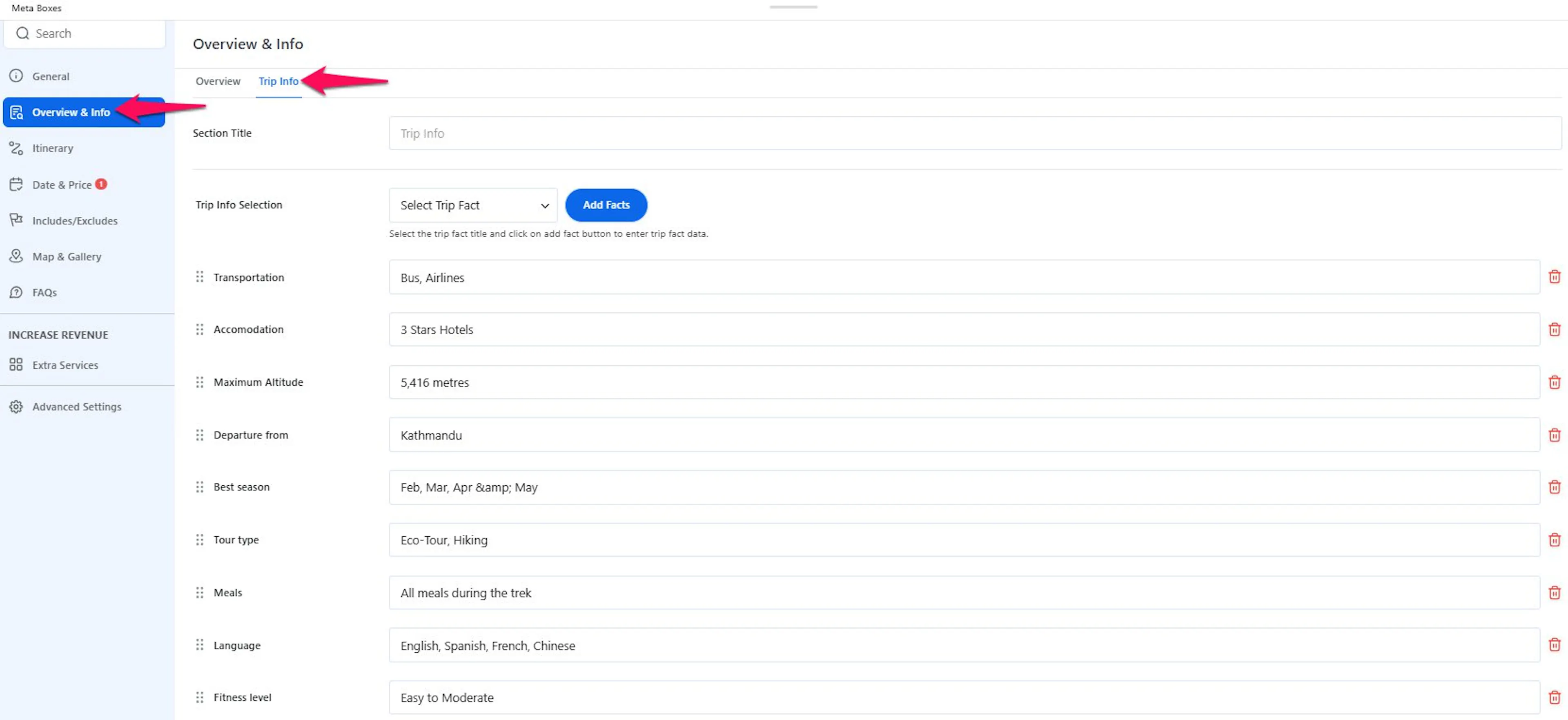
This is where you connect the facts you already created to one specific trip. Once you fill them in, travelers will see the details on the trip page.
Open the trip you want to edit
In the left menu of your WordPress dashboard, click Trips. Then open the trip you want to add facts to. If you're creating a brand-new trip, add the general info first before coming back here.
Go to the Trip Info tab
When you open a trip for editing, you'll see a set of sections running down the right side of the page. These include things like General, Itinerary, Overview, and more. Find and click the Trip Info tab.
Give the section a title
This title helps travelers understand what this section contains. Type a heading in the title field. This is what travelers see as the label above your trip facts. Most tour operators use something like "Trip Facts" or "Quick Facts." You can name it whatever makes sense for your trips.
Choose Trip Facts as the type
This setting controls how the information is shown on the trip page. From the drop-down menu next to the title, select Trip Facts. This tells WP Travel Engine to display your info as a structured list with icons rather than plain text. The icons come from the global settings, so you don't need to pick them here.
Add your facts
This is where you start building the quick summary travelers will read. Click the Add Facts button to create a new fact entry. Each entry links to a Trip Info field you set up in the global settings. You can add as many as you need.
Fill in the details for each fact
These details tell travelers what this trip is actually like. For each fact, type the value that applies to this trip. For example, if the field is "Accommodation" and your trek uses tea house lodges, type "Tea house lodges." If it's "Transportation" and you're using a private van, type "Private van." These are the details your travelers will see on the trip page.
Remove any facts you don't need
Not every fact will fit every trip. If a fact doesn't apply to this particular trip, click the trash can icon next to it to remove it. You're not deleting it from your system. It won't show up on this specific trip, but it'll still be available for other trips.
Save your changes
Saving makes your updates live on the trip page. Click Update or Publish if this is a new trip in the top right corner of the page. Your trip facts are now live on the trip page.
The Trip Info fields you see here come from your global Trip Info settings. If you need a new fact type like "Group Size" or "Difficulty Level," add it there first. Then it'll appear here on each trip. See How to Configure Trip Info Settings for how to do that.
What travelers see
When you're done, travelers viewing your trip page will see the facts you filled in displayed as a clean list with icons. It shows up in a dedicated section so travelers can scan it quickly before they decide to book.
If the facts aren't showing up on your live trip page after you've added them, there's a display setting you may need to turn on. See Trip Facts Not Appearing on the Trip Page for help with that.
Related settings
Trip Overview Info
Add the trip description and highlights.
Trip Includes/Excludes
Clarify what the trip cost covers and what it doesn't.
If you're still stuck or have a question we didn't cover, our support team is happy to help. Reach out at our support page and we'll get you sorted.