

How to Add Trip Shortcodes
Use WP Travel Engine shortcodes to display Trip Info, Video Gallery, and Tour Map content within pages, posts, tabs, or templates.
What shortcodes do
A shortcode is a small piece of text in square brackets that tells WordPress to display something specific. When someone views the page, WordPress replaces the shortcode with the trip content.
You can use shortcodes to show trip details, videos, or a map outside the main trip page. For example, you could add a video gallery for your Everest Base Camp Trek to a separate “Why choose this trek?” page.
Before you start, create at least one trip in WP Travel Engine. You need a trip ID to use its shortcodes.
Where to find trip shortcodes
The Shortcodes section gives you the correct shortcodes for each trip. Follow these steps to find it.
Open your trips
Opening the trips list gives you access to every trip you have created.
From your WordPress dashboard, select Trips in the left-hand menu. Then select All Trips.
Select a trip
Choosing the right trip makes sure the shortcodes belong to the trip you want to display.
Select the trip where you want to find the shortcodes. This could be a three-day rafting package or a multi-day mountain trek.
Open the shortcode list
Opening the Shortcodes section gives you the ready-to-copy shortcodes for this trip.
In the trip editor, open WP Travel Engine Settings. Then select Shortcodes. You will see the available shortcodes for the selected trip. You can copy any of them and paste it into a page, post, or tab.
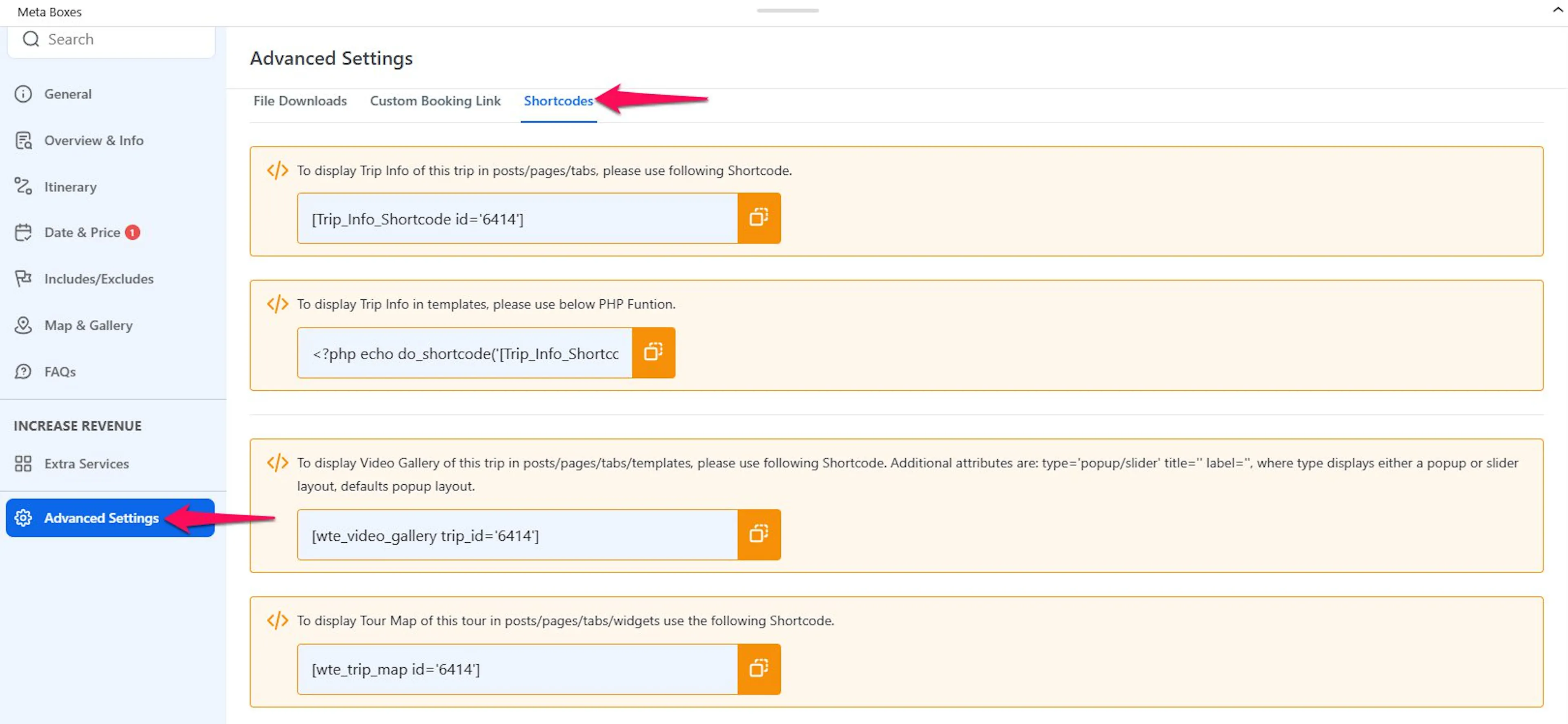
Trip Info
The Trip Info shortcode displays information from a trip, such as its title, description, dates, pricing, and other trip details configured in WP Travel Engine.
Add this shortcode to a page or post:
[Trip_Info_Shortcode id='2957']
For example, add the shortcode to a landing page for your “Annapurna Circuit Trek.” Visitors can review the main trip information without opening the standard single trip page.
If you work with a developer or have a custom theme, the developer can add the shortcode to a theme template with this PHP function:
<?php echo do_shortcode('[Trip_Info_Shortcode id=2957]'); ?>
A template is a theme file that controls the layout of part of your website. Use the PHP function only when you or a developer edits theme files directly.
Video Gallery
The Video Gallery shortcode displays videos connected to a trip. Use it to show footage from a trek, a city tour, or a multi-day package.
Add this shortcode to a page or post:
[wte_video_gallery trip_id='2957']
You can change how the gallery appears by adding attributes.
| Attribute | Description |
|---|---|
type | Sets the layout to popup or slider. The default is popup. |
title | Sets the gallery title. |
label | Sets the label shown on the gallery. |
Here is an example that displays a slider titled “Trip Highlights”:
[wte_video_gallery trip_id='2957' type='slider' title='Trip Highlights' label='Watch Video']
For a guided day tour of Kyoto, you could use this gallery on a page that introduces the tour. Visitors could watch short clips of the food market, temples, and walking route before booking.
Tour Map
The Tour Map shortcode displays the map configured for a trip. Use it to help visitors understand the route for a trek, a safari, or a multi-day travel package.
Add this shortcode to a page or post:
[wte_trip_map id='2957']
For example, place the shortcode on a “Trek Route” page for your Langtang Valley Trek. Visitors can see the route before they read the day-by-day itinerary.
If you work with a developer or have a custom theme, the developer can add the map to a theme template with this PHP function:
<?php echo do_shortcode('[wte_trip_map id=2957]'); ?>
Replace the id / trip_id value in each shortcode with the actual trip's post ID. These shortcodes can be placed in any page, post, or template to showcase trip details outside the single trip page itself.
If you're still stuck or have a question we didn't cover, our support team is happy to help. Reach out at our support page and we'll get you sorted.