

PayPal Express Checkout Payment Gateway
Install and configure the PayPal Express Checkout Payment Gateway addon, including Client ID and Secret setup, card payment options, and manual payment capture.
Overview
PayPal Express Checkout is a payment gateway. A payment gateway is a service that collects money from your traveler during checkout. When you connect it to WP Travel Engine, travelers can pay with their PayPal account or card without leaving your site.
For example, someone booking a weekend hiking trip can pay right on your checkout page instead of being sent to a separate site. That helps you take bookings online while giving your travelers a familiar way to pay.
What you'll need before you start
Before you begin, make sure you have these ready:
- WP Travel Engine installed and active on your site. A plugin is a small add-on that gives your WordPress site extra features. WP Travel Engine is the plugin that powers your trip bookings.
- The PayPal Express Checkout Payment Gateway addon purchased and installed. An add-on is an extra feature you add to WP Travel Engine.
- A verified PayPal account so you can accept payments.
If you have not installed the addon or activated your license yet, follow the guide to activate the Pro addon license key. That page shows you where to upload the addon and where to enter the license key in WordPress.
Once these are in place, you are ready to turn the payment method on.
How to enable the PayPal Express Checkout Payment Gateway
You'll need to sign in to your WordPress dashboard first. The WordPress dashboard is the admin area of your website. You usually open it at yoursite.com/wp-admin.
Open your WordPress dashboard
Go to your WordPress dashboard and sign in. The left sidebar is the menu running down the left side of your screen. You'll use it to move through the settings.
Open the payment settings
This is where WP Travel Engine keeps all your payment options.
In the left sidebar, go to WP Travel Engine > Settings > Payment > General.
Turn on PayPal Express
This makes PayPal Express available as a payment option at checkout.
Find Paypal Express in the list of payment gateways. Check the box next to it to enable it.
Save your changes
Click Save Settings at the bottom of the page. Your changes will not apply until you save them.
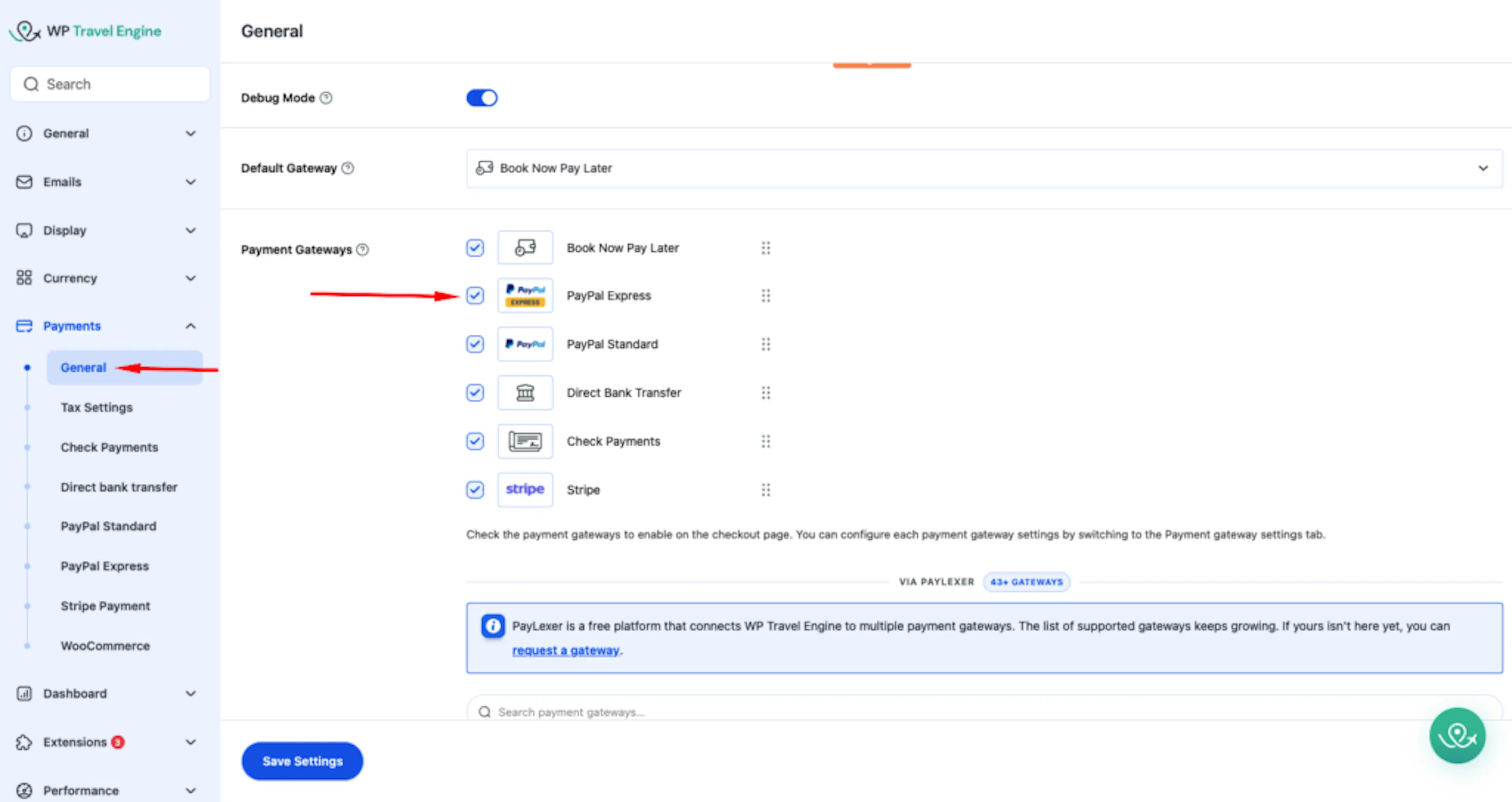
You can keep PayPal Express turned on alongside other payment methods. For example, you might offer Paypal Express, Stripe, and Bank Transfer so travelers can choose the option they trust most.
That turns the gateway on. Next, you'll connect it to your PayPal account.
Configuring the PayPal Express Checkout gateway
Your Client ID and Secret are special codes from PayPal. These codes let your website talk to your PayPal account securely. You get both from your PayPal Developer account.
Before you begin, keep your PayPal account open in another browser tab. That makes it easier to copy the codes and paste them into WordPress.
Open the PayPal Express settings in WordPress
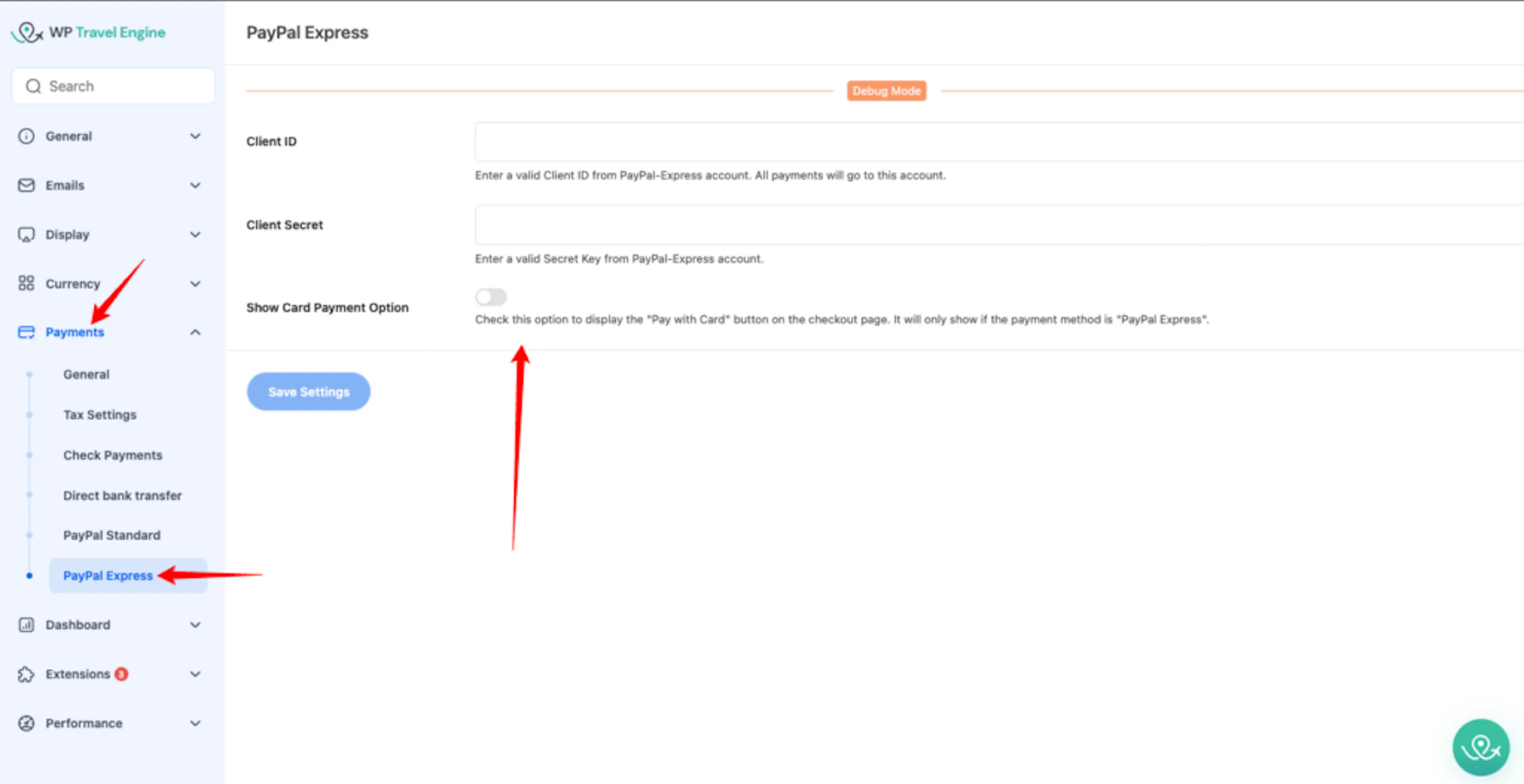
In your WordPress dashboard, go to WP Travel Engine > Settings > Payments > PayPal Express. This is where you'll paste the PayPal details that connect your site to your account.
Find your Client ID in PayPal
The Client ID tells PayPal which account your website should use for payments.
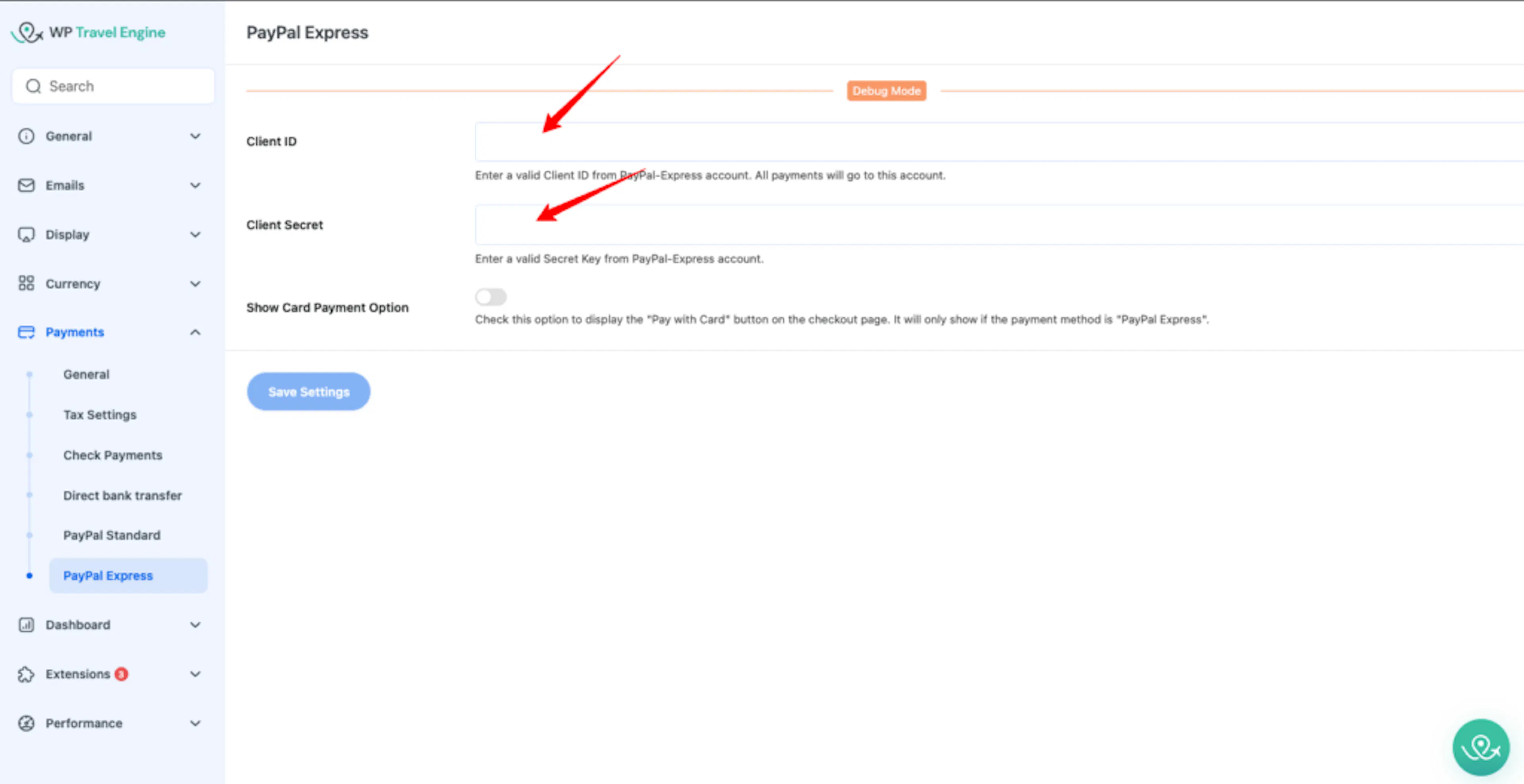
Open your PayPal Developer account and find the app or setup area for PayPal Express Checkout. Copy the Client ID shown there.
Paste your Client ID into WordPress
Paste the Client ID into the Client ID field on the PayPal Express settings page in WordPress.
Find your Secret in PayPal
The Secret works with the Client ID to create a secure connection between your site and PayPal.
In the same PayPal Developer area, copy the Secret for your PayPal app.
Paste your Secret into WordPress
Paste the Secret into the PayPal Secret field on the PayPal Express settings page. Keep this code private. Do not share it with anyone.
Choose whether to show card payments
This gives travelers another way to pay if they do not want to sign in to PayPal.
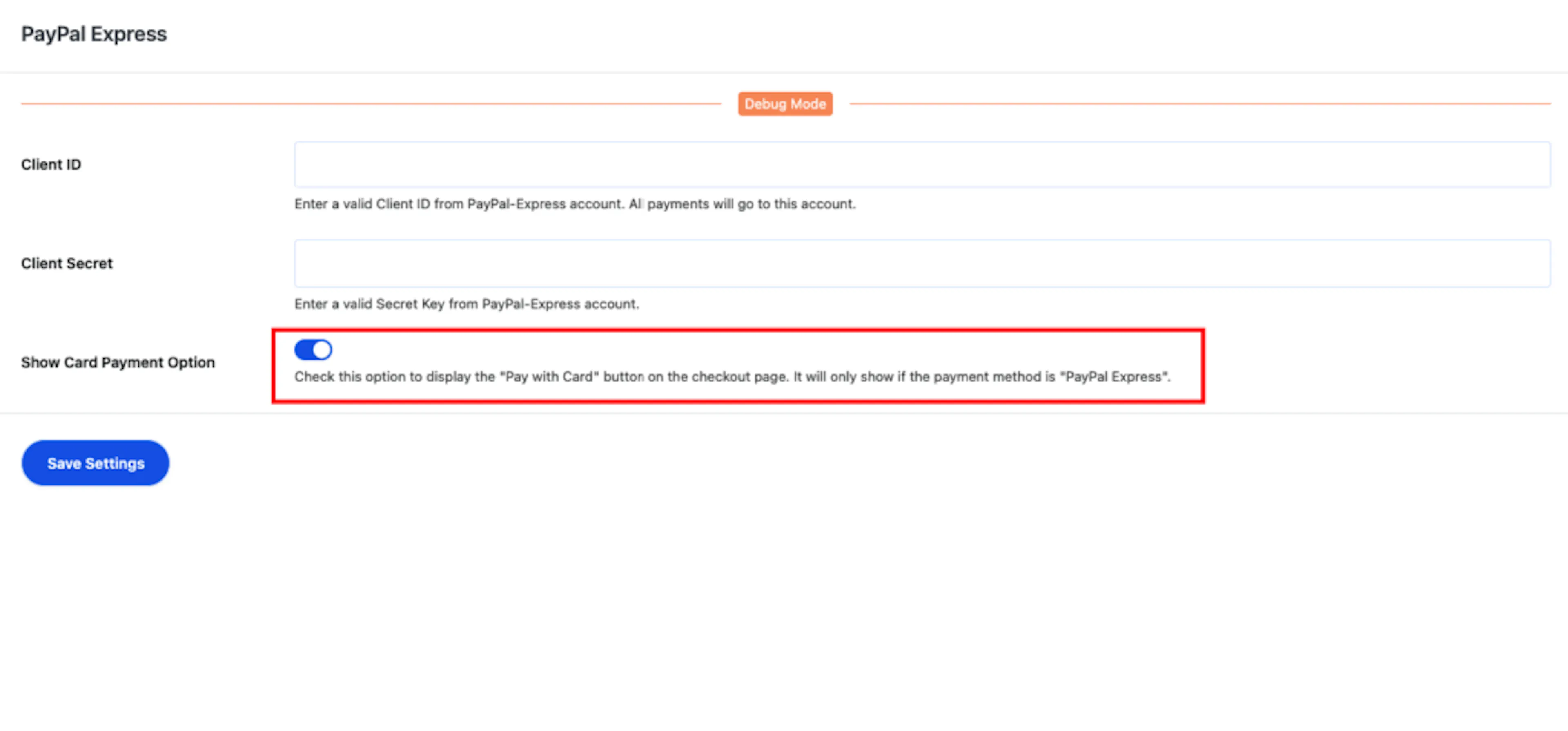
Turn on Show Card Payment Option if you want to display a Pay with Card button on your checkout page. When this is on, travelers who pick PayPal Express may also be able to pay by debit or credit card, depending on PayPal support in their region.
For example, someone booking a city walking tour may prefer to pay with their credit card instead of logging in to PayPal.
Save the PayPal settings
Click Save Settings after you enter your Client ID, Secret, and card payment choice. Your website will not use the new connection details until you save them.
If the card option does not appear for every traveler, that is normal. PayPal decides whether to show card payments based on the traveler's location and PayPal availability in that region.
That is the main setup done. Your website can now take PayPal Express payments for trips and tours.
Manual payment capture (if automatic capture fails)
Sometimes a traveler finishes the payment in PayPal, but your website does not record it right away. This usually happens because of a temporary connection issue between your site and PayPal.
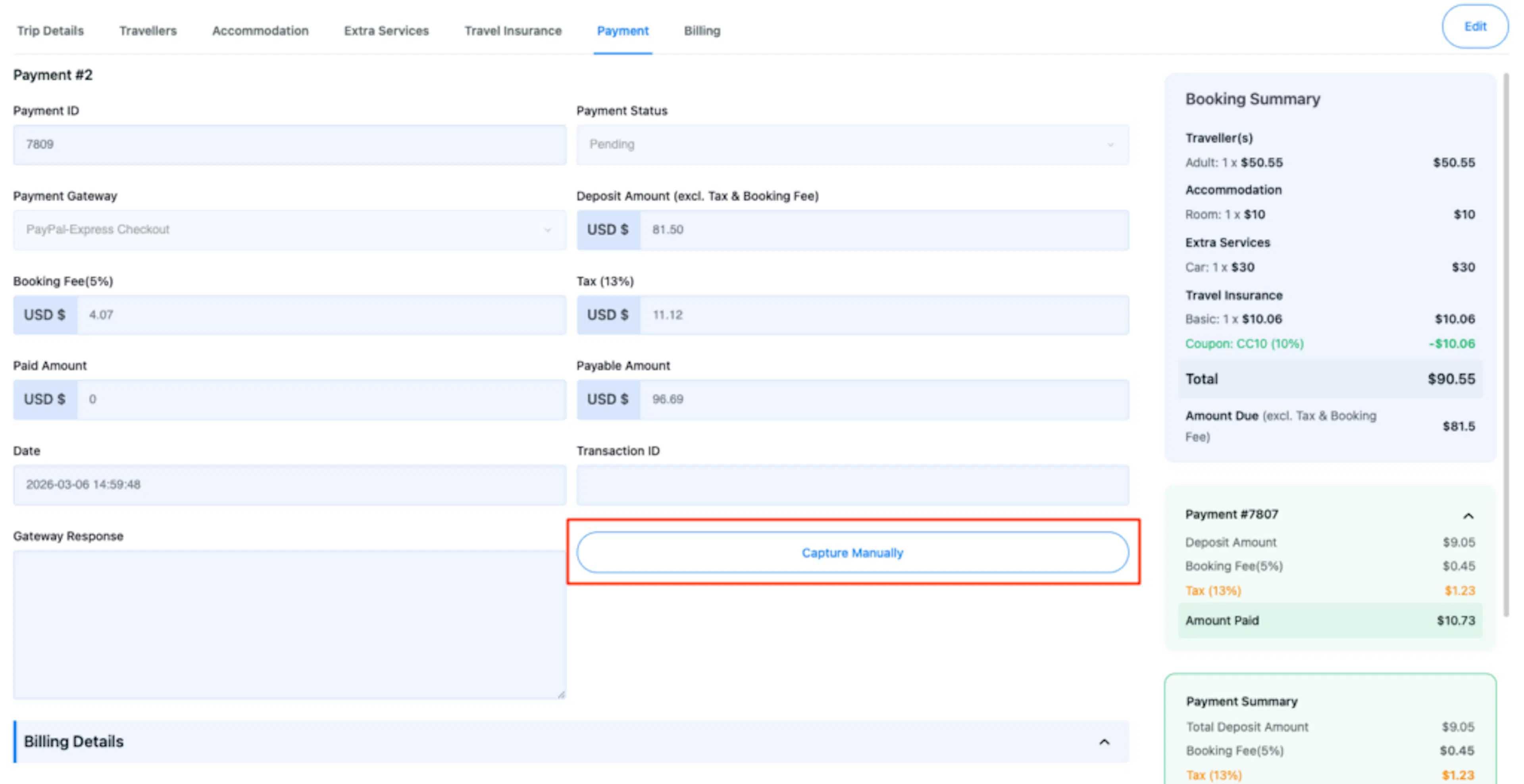
When that happens, WP Travel Engine may show a Capture Manually button inside the booking. That button lets you try the payment capture yourself from the booking screen.
When does the Capture Manually button appear?
You will see Capture Manually when all of these are true:
- The traveler completed the payment through PayPal Express Checkout.
- The automatic capture did not finish successfully.
- The booking still shows the payment status as Pending.
This is not always a sign that something is seriously wrong. It often means the payment needs one more push from the booking screen.
How to use it
Before you use this option, confirm the traveler really completed the payment in PayPal. That helps you avoid chasing a payment that was never finished.
Open the bookings area
In your WordPress dashboard, go to WP Travel Engine > Bookings from the left sidebar. This shows you all the trip bookings on your site.
Open the booking with the pending payment
The manual capture button only appears inside the affected booking. Find the booking where the payment status still says Pending. Open that booking.
Go to the Payment tab
The payment actions for the booking are kept in this tab. Inside the booking, click the Payment tab.
Click Capture Manually
This tells WP Travel Engine to ask PayPal for the payment again. Click Capture Manually. WP Travel Engine will try to capture the payment from PayPal and then update the booking payment status.
If the capture works, the payment will show in the booking and in the Payment Summary. That gives you a clear record for the trip booking.
When should you use it?
Use Capture Manually when:
- The traveler says the payment was completed.
- PayPal shows the payment as sent or authorized.
- The booking in WP Travel Engine still shows Pending.
For example, a traveler books a multi-day package and sends you a screenshot showing the PayPal payment went through. If the booking still says Pending, manual capture is the right next step.
After a successful capture, the booking will reflect the payment correctly. If it does not, the troubleshooting section below will help you check the most common causes.
Troubleshooting
If something does not look right, start with the issue that matches what you see on screen.
PayPal Express is not showing up at checkout
Check that the PayPal Express Checkout add-on is installed and active on your site. Then go to WP Travel Engine > Settings > Payments > General and make sure PayPal Express is enabled. If it was already enabled, uncheck it, save, then check it again and save. That can refresh the setting.
My Client ID or Secret is not working
Go back to your PayPal Developer account and copy the Client ID and Secret again. When you paste them into the PayPal Express settings, make sure there are no extra spaces before or after the values. Even a single extra space can stop the connection from working. Save the settings after pasting.
The booking says Pending, but the traveler already paid
First, confirm in PayPal that the traveler completed the payment. If the payment is complete there, open the booking in WP Travel Engine. Go to the Payment tab and click Capture Manually. This asks PayPal to send the payment through again.
The Capture Manually button is not there
This button only appears when a PayPal payment was authorized but did not get captured automatically. If you do not see it, the payment may not have reached that stage yet. Check PayPal to see if the payment is still processing. If PayPal shows the payment as completed but the button is still missing, contact support.
The Pay with Card button is not showing on my checkout page
Make sure Show Card Payment Option is turned on in the PayPal Express settings. Go to WP Travel Engine > Settings > Payments > PayPal Express to check. Even when it is turned on, PayPal may hide the card option based on the traveler's region. This is controlled by PayPal, not by WP Travel Engine.
I saved my settings, but nothing changed on my checkout page
Try clearing your website cache. A cache is a temporary stored copy of your pages that helps your site load faster. Sometimes it shows an older version of your checkout page even after you have saved new settings. If you are not sure how to clear your cache, your hosting provider can help with this.
Frequently asked questions
Do I need a PayPal account to use this addon?
Yes. You need a verified PayPal account to accept payments through this addon. The account is where your trip payments get sent.
Can I test PayPal Express before going live?
Yes. You can use test credentials from PayPal to check the booking flow without taking a real payment. Log in to your PayPal Developer account and look for sandbox or test mode options. These give you a separate set of Client ID and Secret values for testing.
Where do I find my PayPal Client ID and Secret?
Both are in your PayPal Developer account. After you create a PayPal application there, you'll see the Client ID and Secret on the app details page. Copy those values and paste them into the PayPal Express settings in WordPress.
Can I offer PayPal Express and other payment methods at the same time?
Yes. You can turn on PayPal Express along with Stripe, bank transfer, or any other payment method WP Travel Engine supports. Travelers will see all enabled options at checkout and can pick whichever they prefer.
Does PayPal Express work in all currencies?
PayPal supports many currencies, but not all of them. Check PayPal's documentation for the current list of supported currencies. The currency you set in WP Travel Engine > Settings > General > Currency must be one PayPal accepts. If it is not, PayPal Express will not appear at checkout.
Will PayPal Express work on my traveler's phone?
Yes. PayPal Express Checkout works on mobile devices. Travelers booking a trip from their phone will see the same PayPal option as someone booking from a computer.
If you're still stuck or have a question we didn't cover, our support team is happy to help. Reach out at our support page and we'll get you sorted.