

WeTravel Integration
Connect your WeTravel account to WP Travel Engine so travelers can book and pay through WeTravel directly from your trip pages.
What is WeTravel Integration?
The WeTravel Integration addon connects your WP Travel Engine trip pages to WeTravel's payment flow. An addon is an extra feature you install on top of WP Travel Engine.
WeTravel is a payment platform built for travel businesses. If you already use WeTravel to collect payments for trips, this addon lets you send travelers there from your WordPress trip pages instead of using the default WP Travel Engine booking flow.
You can also use the addon with a custom booking URL. That helps if you want one of your trips to send travelers to another booking page instead.
For example, say you run a 7-day Annapurna trek and already collect payments in WeTravel. You can keep showing the trip on your website, but send the booking and payment step through WeTravel.
Features
- Supports WeTravel or Custom URL booking.
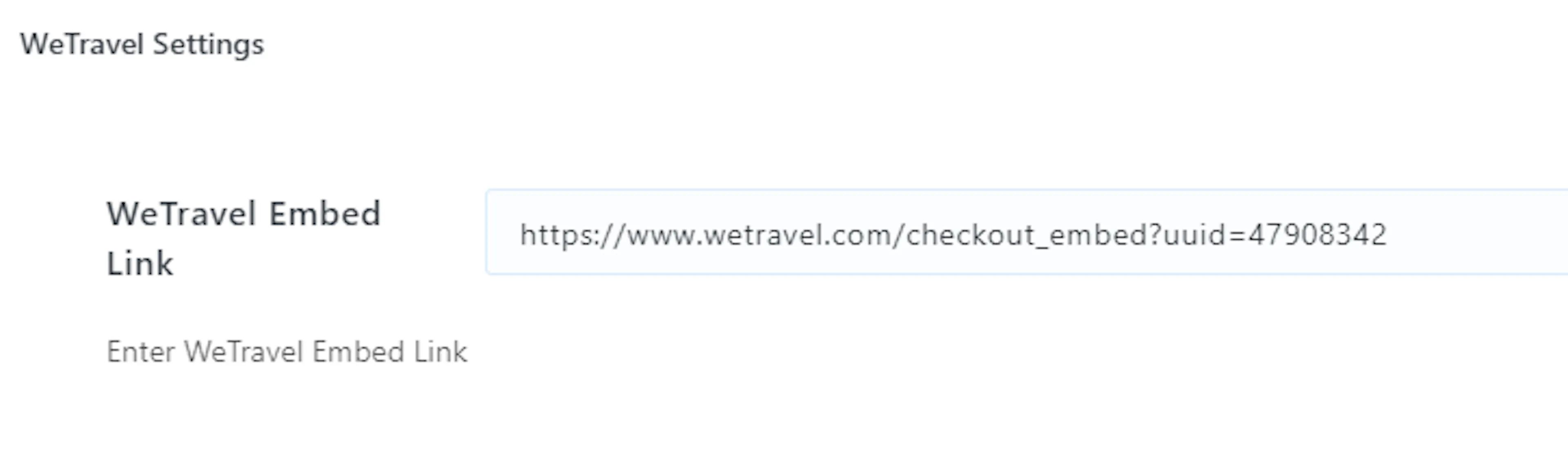
- Lets you add your WeTravel trip embed link to trips created in WP Travel Engine.
- Overrides the default WP Travel Engine booking flow with WeTravel's booking flow.
Once you know what the addon does, the next thing to understand is what your travelers will see on the trip page.
How the booking flow changes
When you add an embed link to the WeTravel Embed Link field in the backend, the normal WP Travel Engine booking flow changes. The backend is the admin area of your WordPress site, where you manage trips and settings.
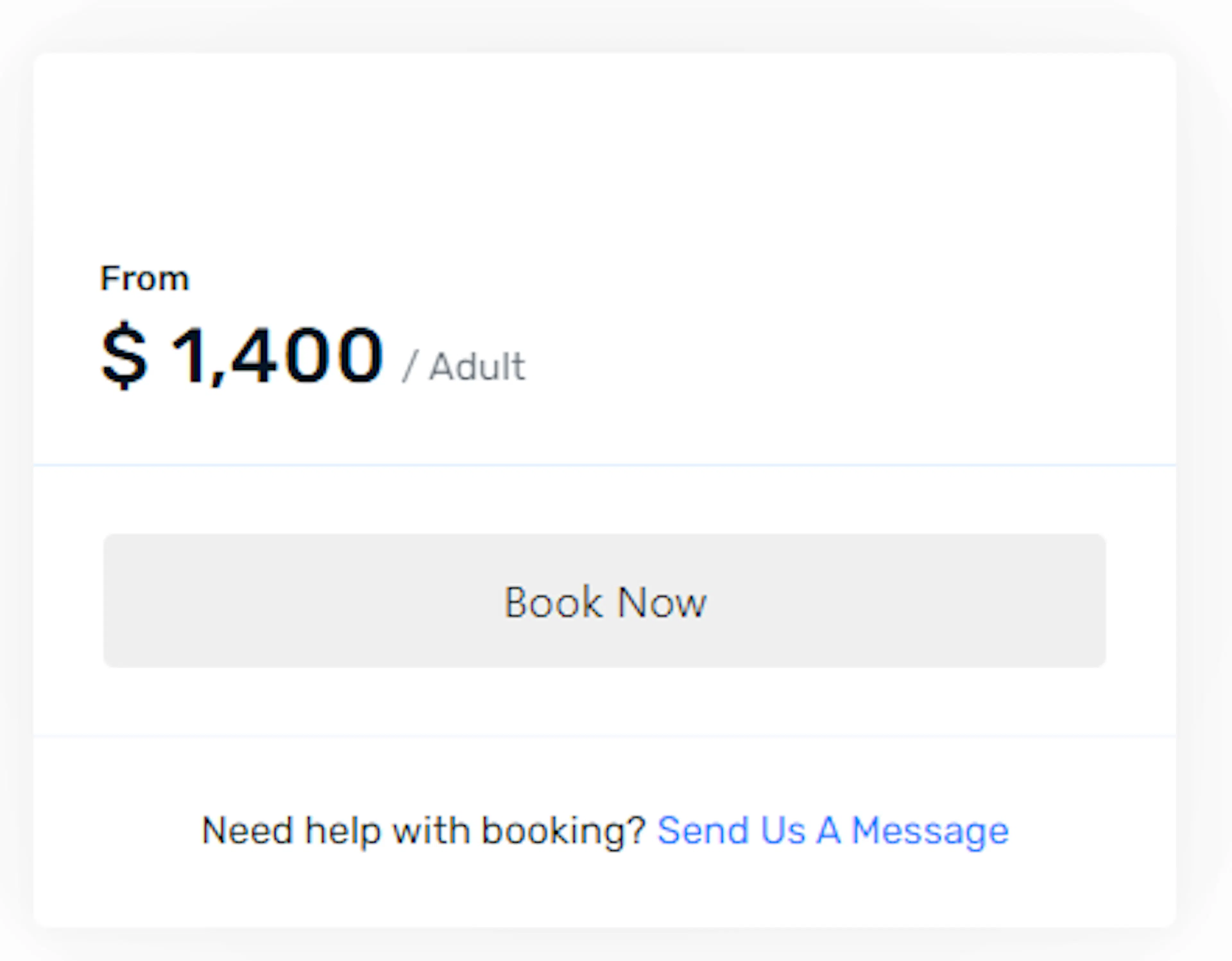
The default Check Availability button layout in WP Travel Engine changes to a Book Now button. When a traveler clicks Book Now, a popup opens and the traveler continues through WeTravel's payment process there.
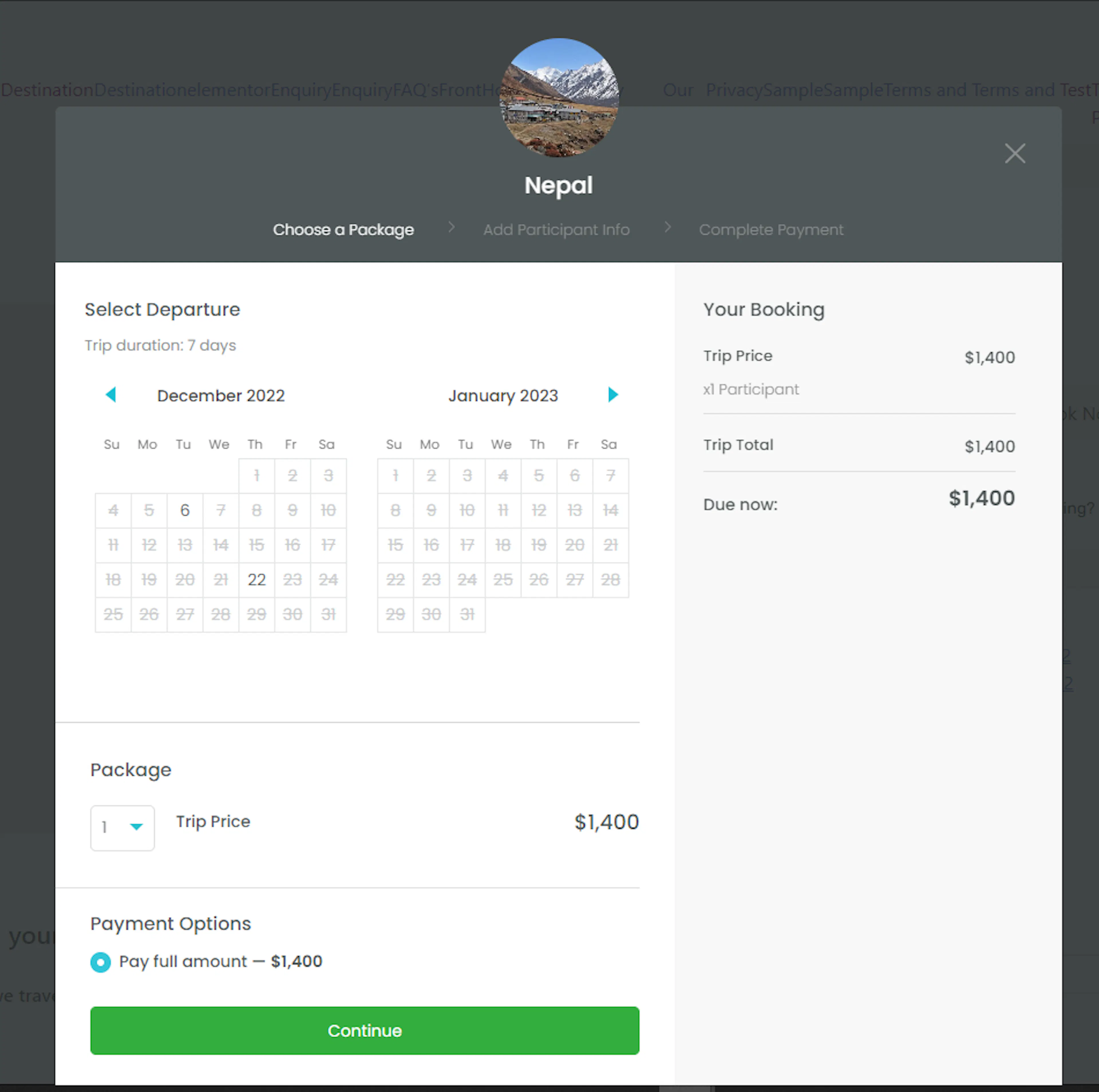
A popup is a small window that opens on top of the page. Your traveler does not need to search for a separate payment page on their own.
For example, if someone is booking your 5-day Everest Base Camp trek, they might read the trip details on your website, click Book Now, and then complete payment through WeTravel in the popup window.
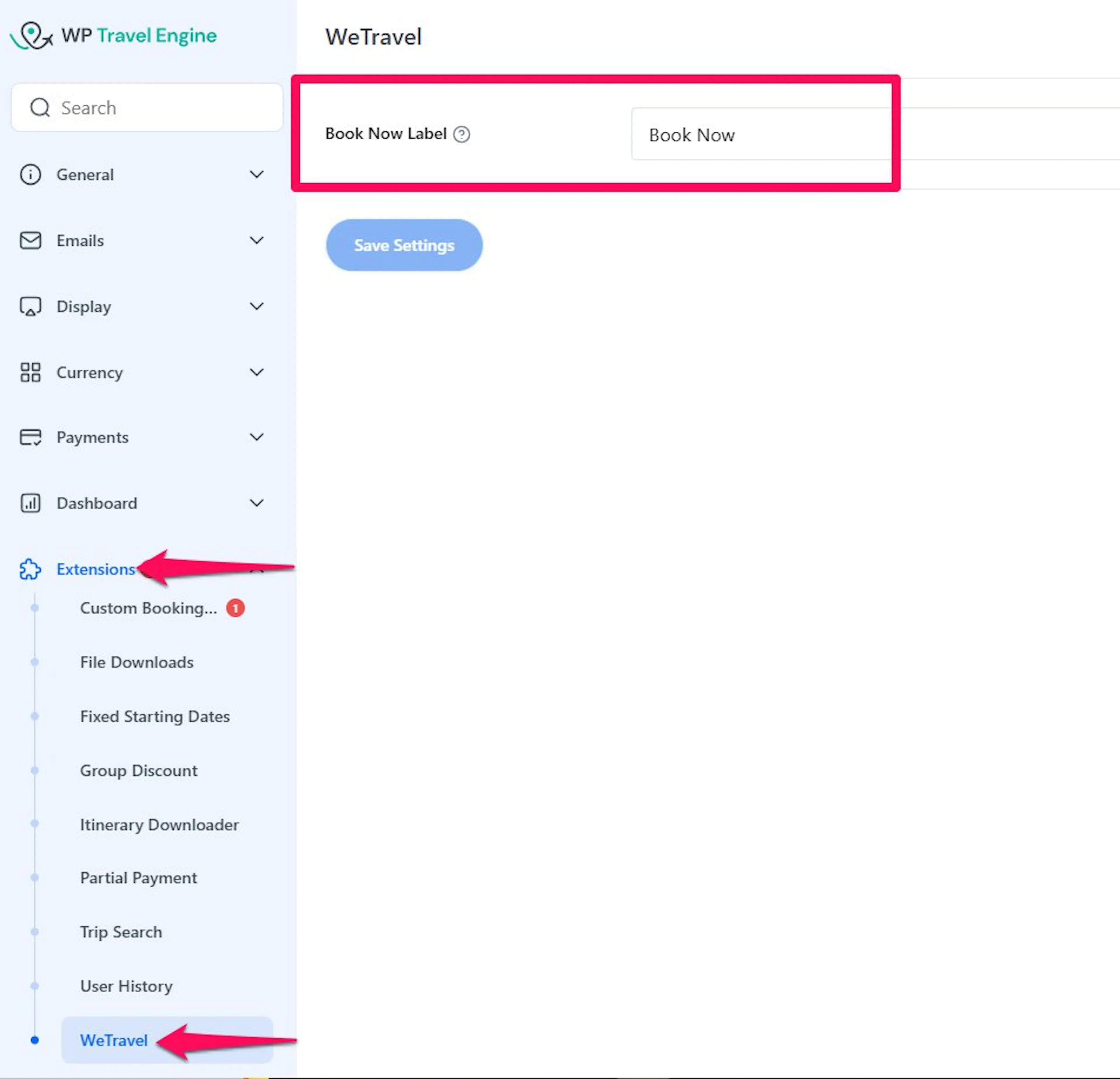
You can change the text displayed on the button from the WP Travel Engine backend settings page.
That is the part your traveler sees. Next, you need the correct link from your WeTravel trip so WP Travel Engine knows where to send them.
How to get your WeTravel embed link
Before you start, make sure the WeTravel Integration add-on is installed and active in WordPress. Also make sure you have a WeTravel account with at least one trip already created.
Open your trips in WeTravel
Start in WeTravel so you can copy the right payment link for the trip you want to connect.
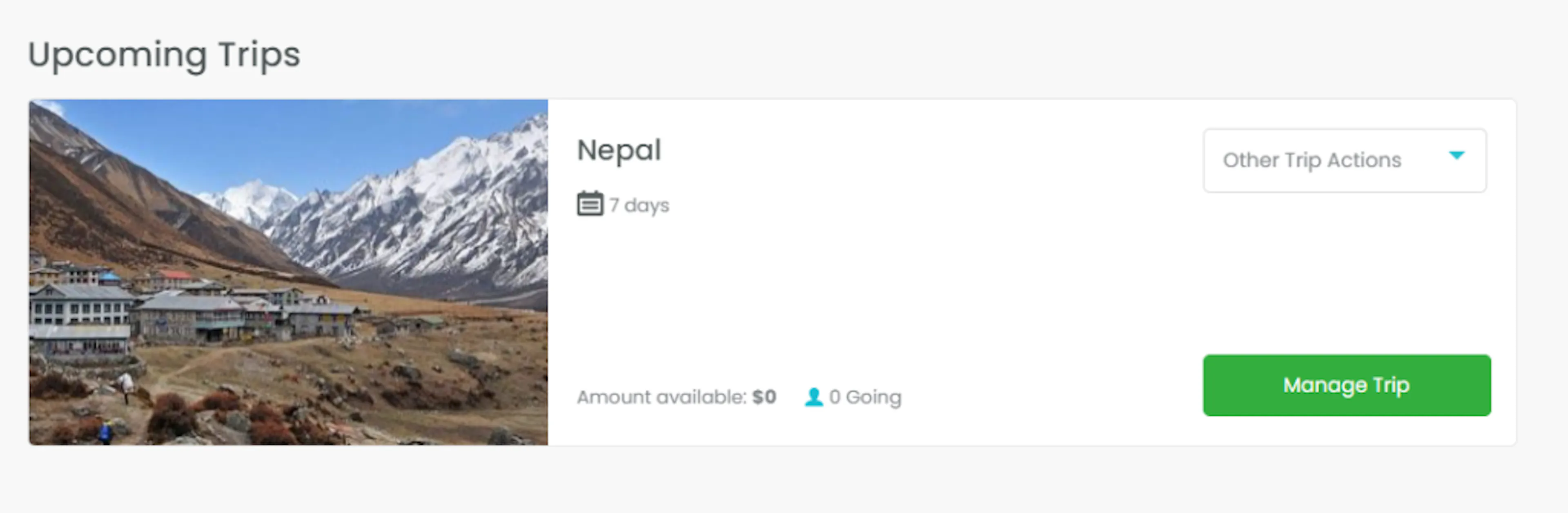
Open the My Trips page in WeTravel. This page shows the trips you have already created in your WeTravel account.
If you offer both a one-day rafting trip and a 10-day lodge trek, take a moment to choose the correct trip before moving on.
Manage the trip you want to embed
This opens the settings for the exact trip you want people to book from your website.
Click the manage trip option for the trip whose URL you want to embed. Make sure it is the same trip your traveler will see on your WP Travel Engine trip page.
Open the Promote tab
The payment link you need lives inside the trip's promotion tools.
Go to the Promote tab and scroll down. If you do not see it right away, look near the top area of the trip management page.
Copy the direct payment link
This gives you the exact link that sends travelers to the payment step.
Click the Direct Link tab. You'll see two links available to copy. Copy the one labeled Link directly to Payment Page.
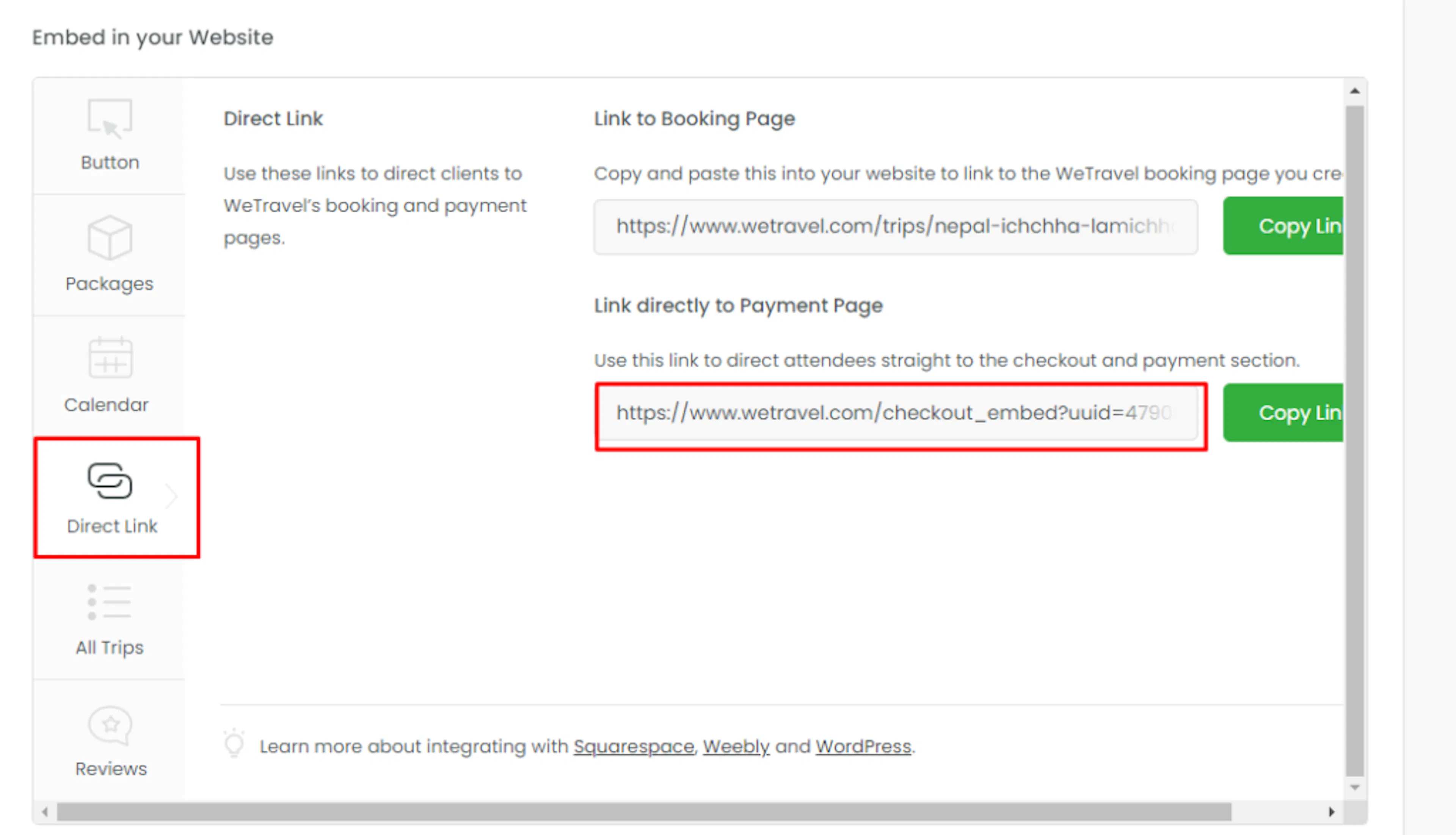
This is the better link for most tour businesses because it takes travelers straight into the payment flow instead of making them hunt for the next step.
Add the link to WP Travel Engine
This connects your website trip to the matching WeTravel payment page.
In your WordPress dashboard, open the trip you want to edit from the left sidebar. Find the WeTravel Embed Link field for that trip and paste in the link you copied from WeTravel.
Use the field for the matching trip only. For example, paste your Kilimanjaro climb payment link into the Kilimanjaro trip, not into a safari or day tour.
Once the link is saved in the right trip, your website is ready to send travelers into WeTravel's checkout flow.
If you're still stuck or have a question we didn't cover, our support team is happy to help. Reach out at our support page and we'll get you sorted.