

How to Add a New Trip Tab
Add custom tabs like Travel Tips, Packing Lists, or FAQs to your trip pages so travelers see the information they need before booking.
What trip tabs are
When a traveler opens one of your trip pages, they see a set of tabs near the top. The default tabs include Overview, Itinerary, Cost, and Reviews. These cover the basics that every trip needs.
You can also create your own custom tabs. These let you show extra information that matters to your travelers but doesn't fit into the default tabs.
Say you run a 5-day trek and want a dedicated tab called "What to Pack." You can create that tab, add your packing list, and travelers will see it right on the trip page. You could also add tabs for Travel Tips, Gear Rental, or anything else your tours need.
Create a new trip tab
Setting up a custom tab takes about two minutes. You'll give it a name, pick an icon if you want one, and turn it on.
You'll need WP Travel Engine installed and activated. You can check this in the Plugins section of your WordPress dashboard (the left-hand menu on the main dashboard screen).
Open the Trip Tabs settings
This is where you set up tabs that will appear on all your trip pages.
From your WordPress dashboard, select WP Travel Engine in the left-hand menu. Then select Settings. Inside Settings, open the General tab, then Trip Settings, then Trip Tabs.
Click Add New Tab
This creates a fresh tab slot that you can fill with your own content.
Select the Add New Tab button. You'll see a new set of fields appear.
Name your tab
The name you type here is what travelers will see on the trip page.
In the Tab Label field, type the name of your tab. This could be "Travel Tips," "Packing List," "What to Bring," or anything that makes sense for your tours.
Pick an icon (optional)
A small icon next to the tab name helps travelers spot the right tab quickly.
If you'd like an icon next to your tab name, choose one from the Icon dropdown. This step is optional. Your tab will work fine without an icon.
Turn the tab on
A tab that's turned off stays hidden on the trip page until you're ready to show it.
Use the Enable/Disable toggle to turn your tab on.
Save your changes
Nothing you've done so far will take effect until you save.
Select the Save Changes button.
The default tabs that come with WP Travel Engine (Overview, Itinerary, Cost, and Reviews) can't be deleted. You can turn off any custom tab you create at any time, though.
Add content to your new tab
Creating the tab gave it a name and a place on the page. Now you need to fill it with content. You do this on each individual trip, so the "Travel Tips" tab on your Everest Base Camp trek can have different content than the same tab on your Annapurna day tour.
Open the trip you want to edit
Tab content is added per trip, so you need to open the specific trip where you want the tab content to appear.
From your WordPress dashboard, select Trips in the left-hand menu. Then select All Trips. Find the trip you want to edit and select Edit under its name.
Find your new tab section
This is where you'll type or paste the content travelers see when they click your tab.
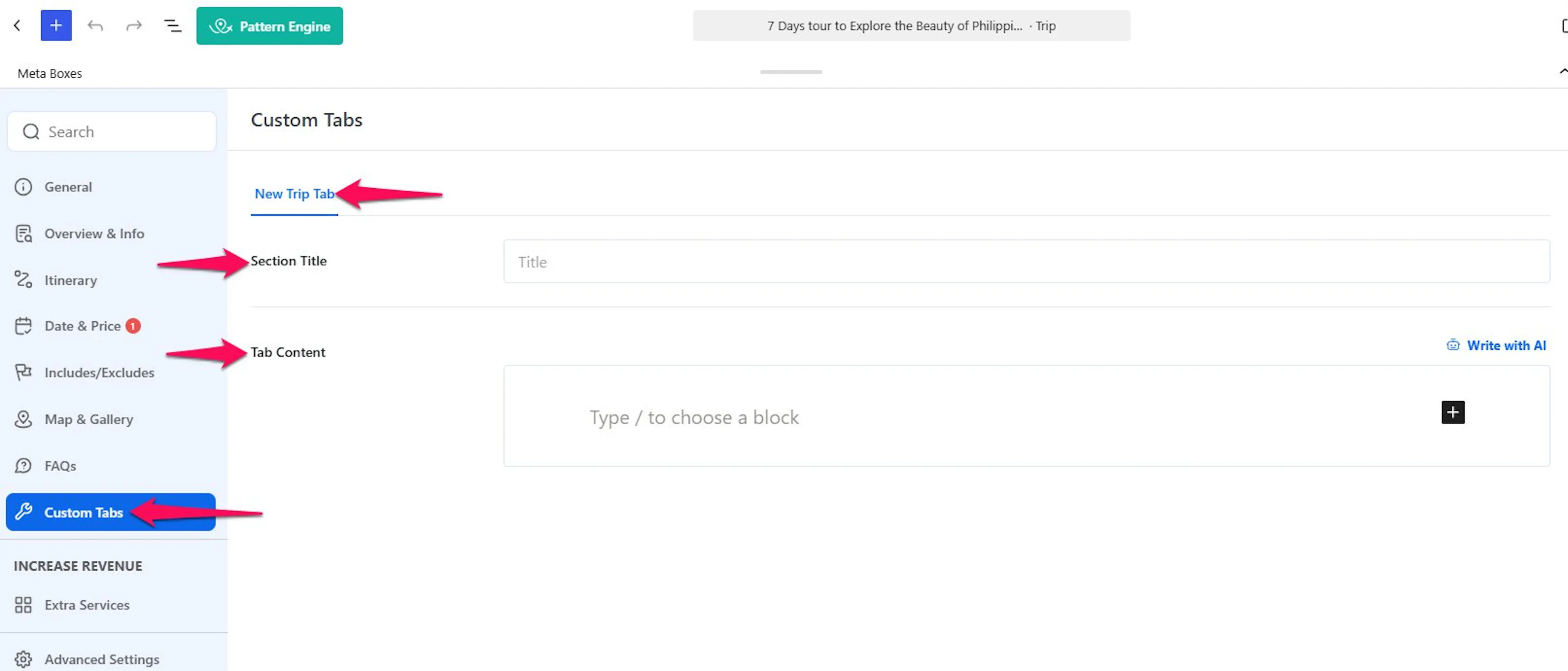
Scroll down the trip editor page. You'll see a section for each tab, including the one you just created.
Add a section title and content
The section title appears as a heading inside the tab, and the content is what travelers will read.
In the Section Title field, type a heading for your tab content. In the Tab Content box, type or paste your text. You can also add images, videos, or shortcodes here.
A shortcode is a small piece of text in square brackets that WordPress turns into a specific feature on your page. For example, you could use a shortcode to display a trip gallery or map inside your custom tab.
Save the trip
Your content won't appear on the live trip page until you save.
Select Update at the top right of the page.
Your new tab will now appear on the single trip page with the content you added.
Troubleshooting
My new tab isn't showing up on the trip page
Check three things. First, make sure the tab is turned on in the Trip Tabs settings (WP Travel Engine > Settings > General > Trip Settings > Trip Tabs). Second, make sure you've added content to the tab on the specific trip you're viewing. Third, make sure you clicked Update on the trip after adding the content.
I created a tab but it's empty on every trip
Creating a tab in the settings gives it a name and a spot on the page. But the actual content goes into each trip individually. Open the trip you want to edit, scroll down to your new tab section, and add your content there. Then click Update.
My tabs are in the wrong order
You can change the order of your tabs. Go back to the Trip Tabs settings (WP Travel Engine > Settings > General > Trip Settings > Trip Tabs). Click and hold on a tab, then drag it to the position you want. Click Save Changes when you're done.
I can't delete one of the default tabs
The default tabs (Overview, Itinerary, Cost, and Reviews) are part of WP Travel Engine and can't be removed. You can turn off any custom tab you've created, but the defaults are permanent.
Frequently asked questions
Can I delete the default trip tabs?
No. The default tabs that come with WP Travel Engine (Overview, Itinerary, Cost, Reviews, and so on) can't be deleted. You can turn off any custom tab you've created at any time, though.
Can I rearrange my tabs?
Yes. You can drag and drop tabs in the Trip Tabs settings to change the order they appear in on the trip page.
Can I use images or shortcodes in the tab content?
Yes. You can add formatted text, images, videos, or shortcodes to your tab content. A shortcode is a small piece of text in square brackets that WordPress replaces with a specific feature when someone views the page.
Is there a limit to how many custom tabs I can add?
No. You can add as many custom tabs as you need.
Will the same tab appear on all my trips?
The tab itself (its name and icon) appears on every trip page. But the content you put inside it is added separately for each trip. So your "Travel Tips" tab will show different tips for each tour.
Can I turn off a tab for a specific trip only?
No. When you turn a tab on or off in the Trip Tabs settings, it applies to all your trips. If you want a tab to appear blank on a specific trip, leave its content section empty on that trip.
If you're still stuck or have a question we didn't cover, our support team is happy to help. Reach out at our support page and we'll get you sorted.