

How to Export Bookings with WP Travel Engine
Export your trip bookings to Excel from WP Travel Engine, with filters for date range, trip, and booking status.
Overview
Exporting bookings gives you a spreadsheet file you can sort, share, or save outside WordPress. This is helpful for monthly reporting, accounting, or checking how a specific tour is performing.
WP Travel Engine can export your booking list as an Excel/CSV file. A CSV file is a spreadsheet file that opens in Excel or Google Sheets. Once you know where to click, the process is quick.
Prerequisites
Before you start, make sure you have these two things:
- Administrator access to your WordPress dashboard. The dashboard is the main control area you see after you log in to WordPress.
- At least one booking recorded in WP Travel Engine.
If you have both, you are ready to export your bookings.
Exporting your bookings
You will need to log in to WordPress and open the Bookings page in WP Travel Engine before you can export anything.
Open the Bookings page
This is where all of your booking records are stored.
Log in to your WordPress dashboard. On the left side menu, go to WP Travel Engine > Bookings. You will see your booking list in a table.
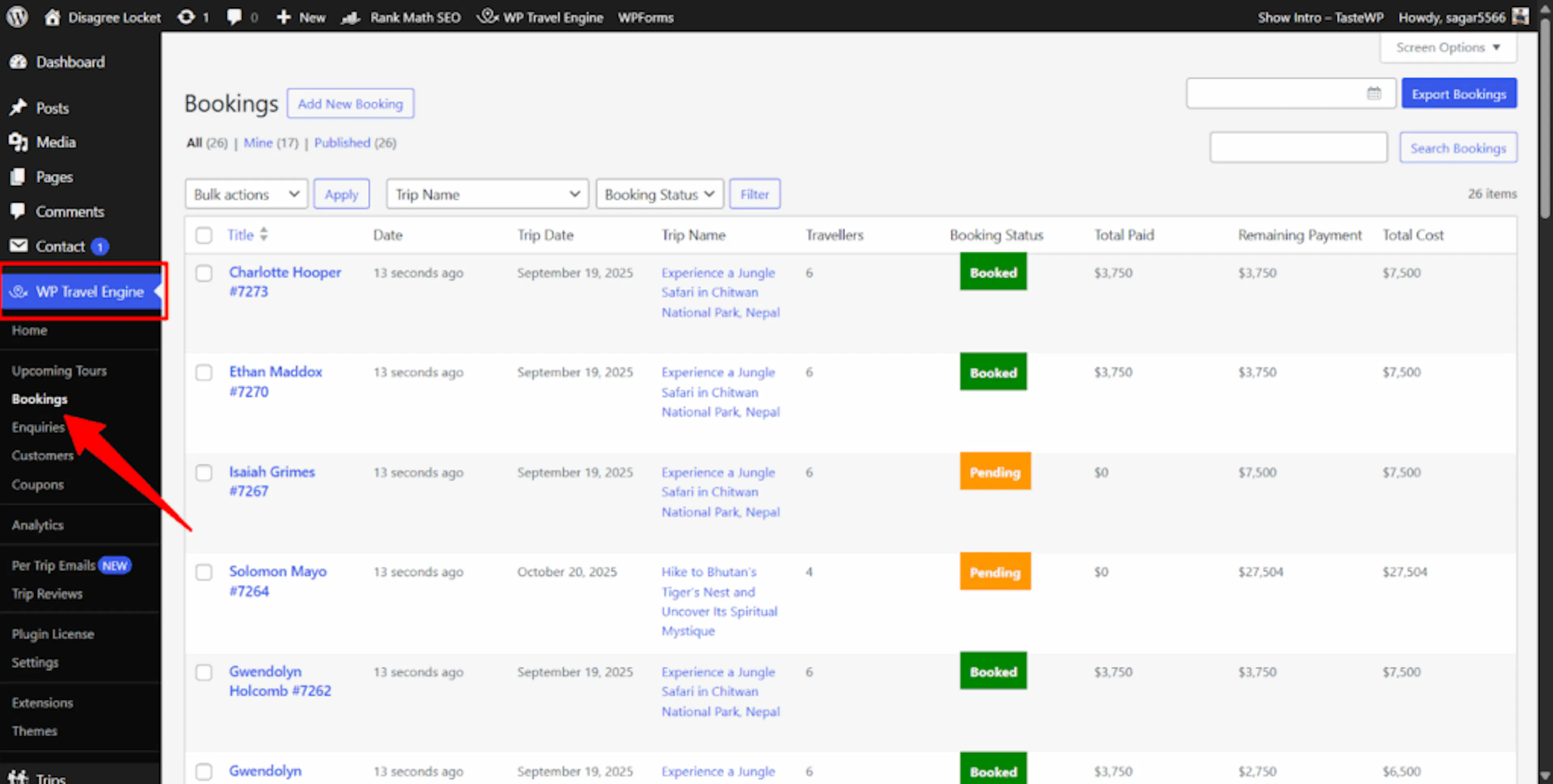
If you can see your bookings on screen, you are in the right place.
Open the Export Bookings popup
This opens the export tool.
On the top right of the Bookings page, click Export Bookings. A small popup window will appear. That popup gives you the filter choices for your export.
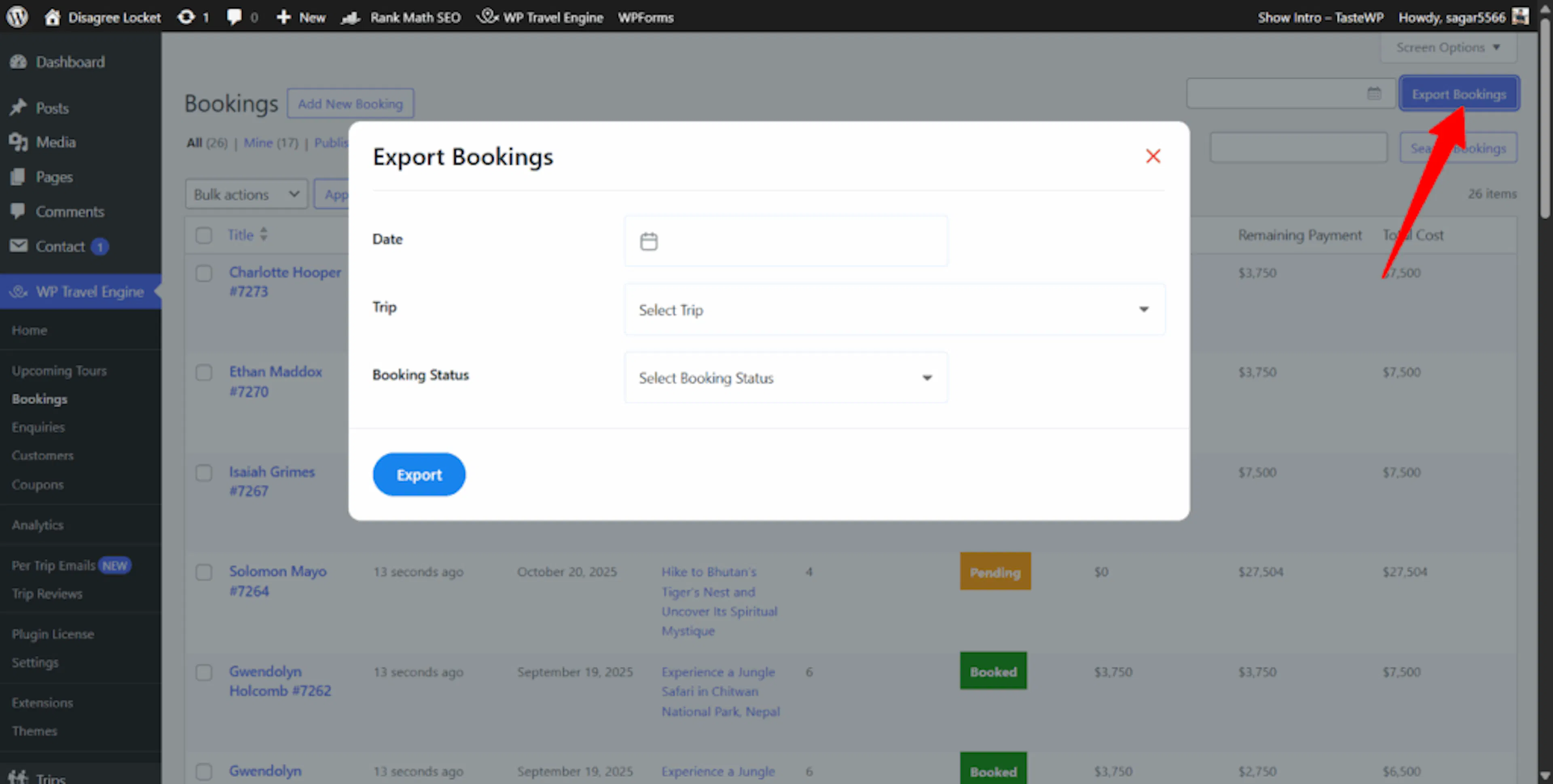
Once the popup opens, you are ready to choose what to include.
Choose your export options
Filters help you export only the bookings you need.
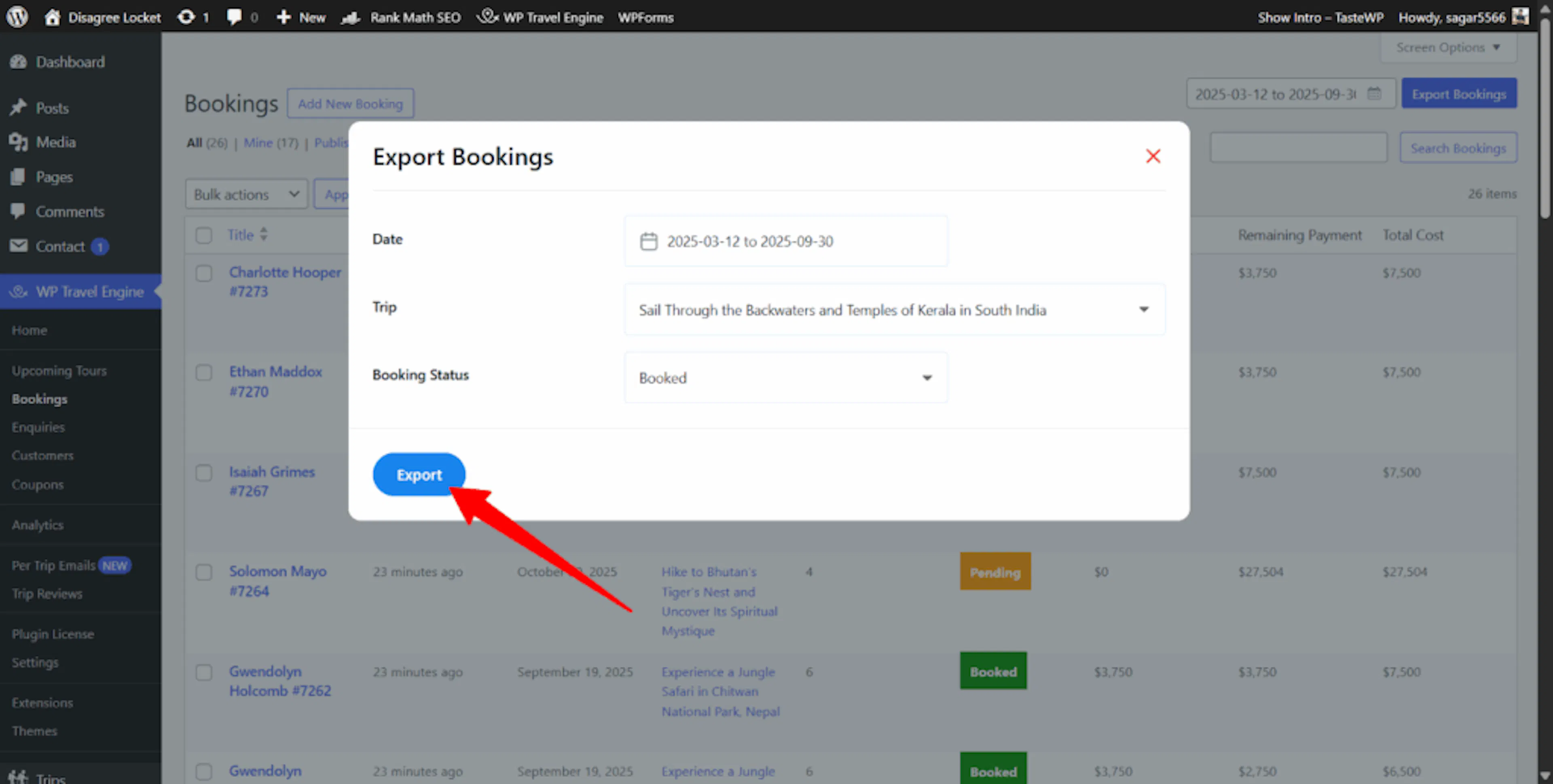
You can use any combination of Date, Trip, and Booking Status. For example, you might export only bookings for your Annapurna Base Camp trek, or only cancelled bookings from your spring season.
If you want every booking on your site, leave all filters empty. The filter details are explained below.
Export the bookings
This creates the file you will use outside WordPress.
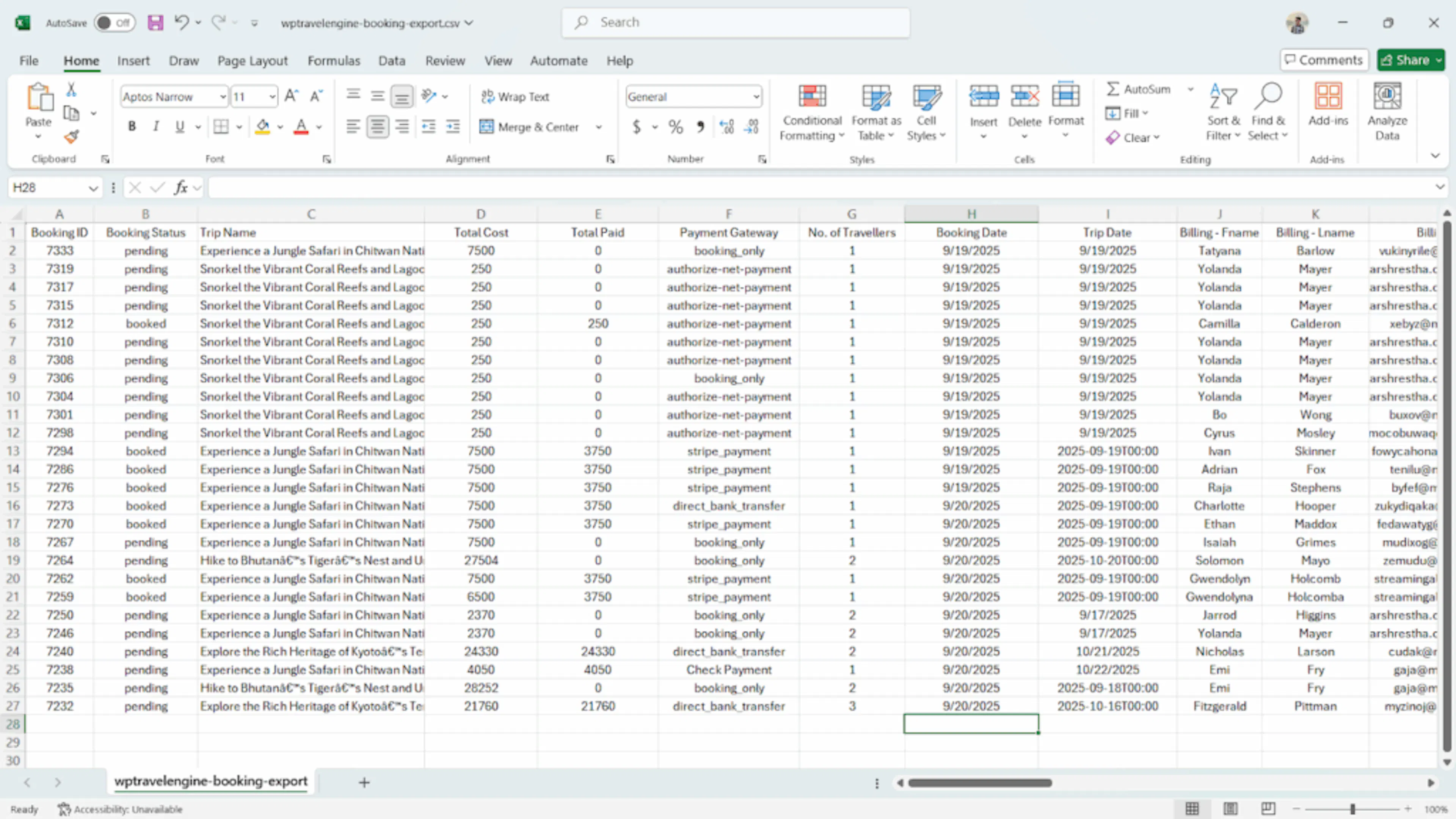
In the popup, click Export. WP Travel Engine will prepare the file and download it to your computer automatically.
The downloaded file will contain the bookings that match the filters you selected. If no filters were selected, the file will include all bookings.
Filter options
These filters help when you want a smaller list instead of every booking. You can use one filter, two filters, or all three together.
Filter by date
Use the Date field to choose a start date and an end date. This exports bookings received during that time period.
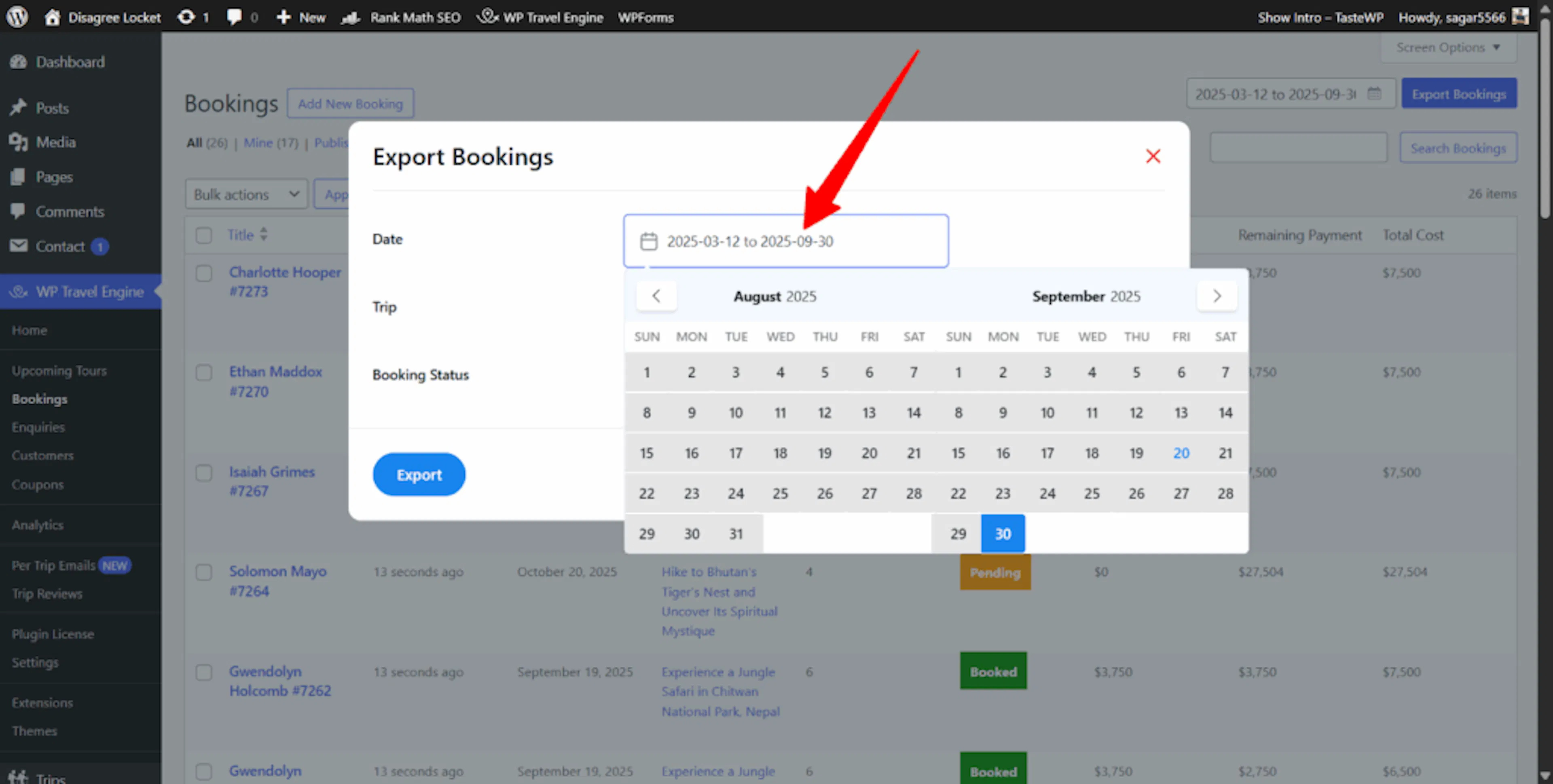
For example, if you set the start date to March 12 and the end date to September 30, the export will include only bookings received between those dates. This is useful if you want a seasonal report for your peak trekking months.
If you do not need to limit by date, leave this field empty and move to the next filter.
Filter by trip
Use the Trip dropdown to choose one specific trip. A dropdown is a field you click to see a list of options.
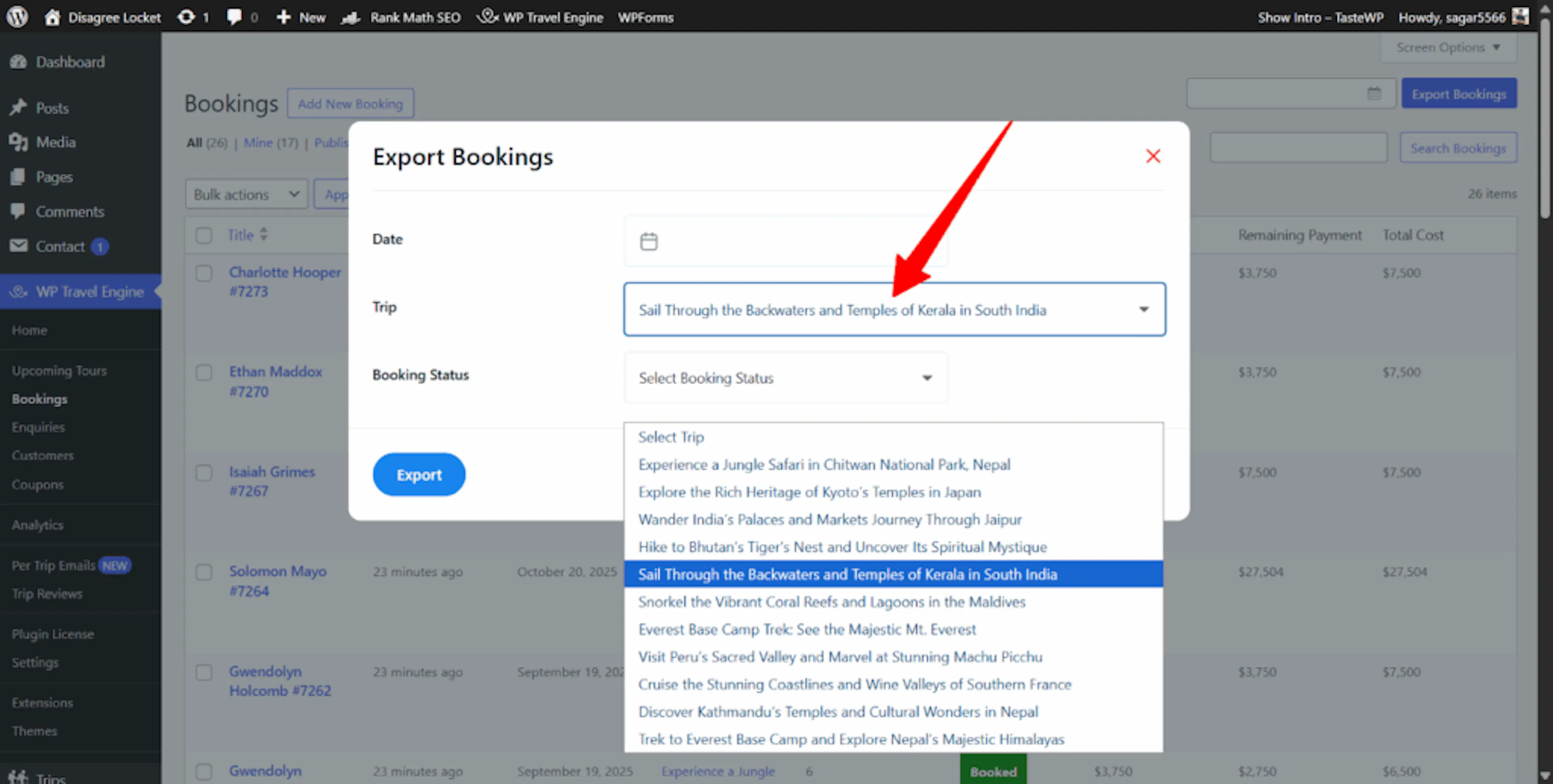
This exports bookings for that trip only. For example, you could export bookings only for your Kathmandu Day Tour or only for a 7-day Mustang package.
If you want bookings from all trips, leave this field empty.
Filter by booking status
Use the Booking Status dropdown to choose a status such as Pending, Booked, Refunded, or Cancelled. This helps when you want to check one type of booking without sorting the spreadsheet later.
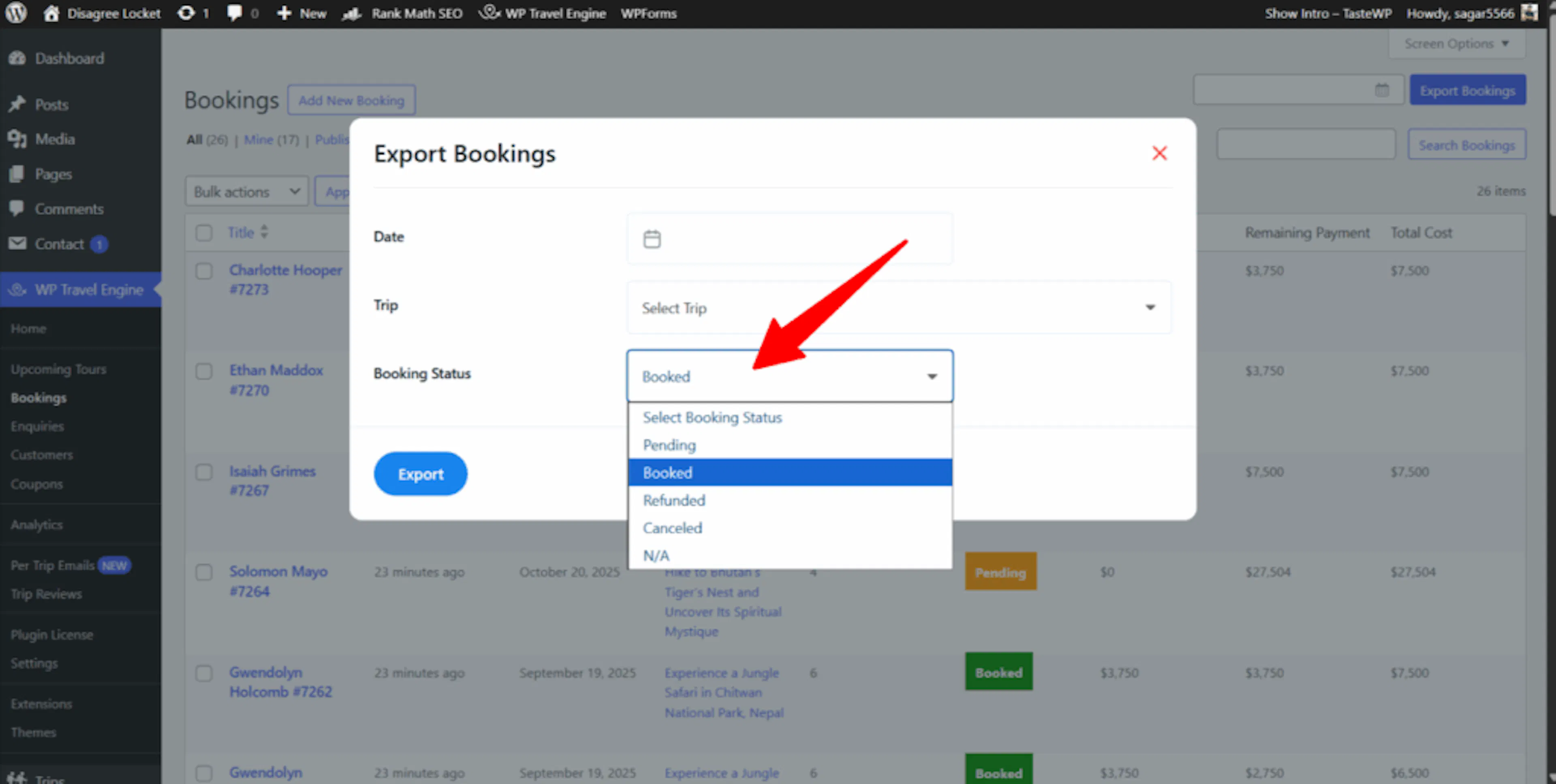
For example, you might export only Booked records before sending a rooming list to a hotel. Or you might export only Refunded bookings for your accountant.
If you want all statuses included, leave this field empty.
Exporting all bookings
If you want the full booking list, do not select any filters in the export popup. Click Export Bookings and then click Export.
WP Travel Engine will create one spreadsheet file with all available bookings from your site. This is the best option when you want a full backup or a complete monthly record.
Tips for smooth exporting
Make sure your browser allows automatic downloads. If downloads are blocked, the spreadsheet file may not save to your computer.
If you have a large number of bookings, the export can take a little time. Wait a moment before clicking again.
Check your filters before you export. This helps you avoid missing bookings for a specific trip, date range, or booking status.
Summary
Your bookings are now ready to use outside WordPress. You can open the spreadsheet file in Excel or Google Sheets and sort it for accounting, trip planning, guest follow-up, or end-of-season reporting.
If you're still stuck or have a question we didn't cover, our support team is happy to help. Reach out at our support page and we'll get you sorted.