

How to Customize the WP Travel Engine Trip Slugs
Change the words that appear in your trip page URLs so they match your brand and make sense to your customers.
Every page on your website has a web address. The last part of that address is called a slug. For example, if your trip page is at yourwebsite.com/trip/annapurna-trek, the word trip in the middle is a slug.
WP Travel Engine lets you change the slugs for your trip pages and your trip category pages. So instead of trip, you could use tour. Instead of the default category names, you could use words that fit your business. This page shows you how.
Why change your slugs?
- Cleaner, shorter links that are easier for customers to remember and share
- Better for search engines, since you can use words your customers actually search for
- Matches your branding across your site. If you call your trips "tours" everywhere else, your links can say that too.
- Helps travelers understand what a page is about before they click
None of these changes are required. Your site works fine with the default slugs. But if you want your links to feel more like your business, this is where you do it.
WP Travel Engine needs to be installed and active on your site. If you can see WP Travel Engine in the left-hand menu of your WordPress dashboard, you're ready to go.
Changing your trip slugs
All six slug settings live on the same page. You can change all of them, or only the ones that matter to you. Your site updates the new links as soon as you save.
Open the Trip Slugs settings
In your WordPress dashboard (the admin area you reach after logging in), look at the left sidebar. Click Settings, then click WP Travel Engine: Trip Slugs.
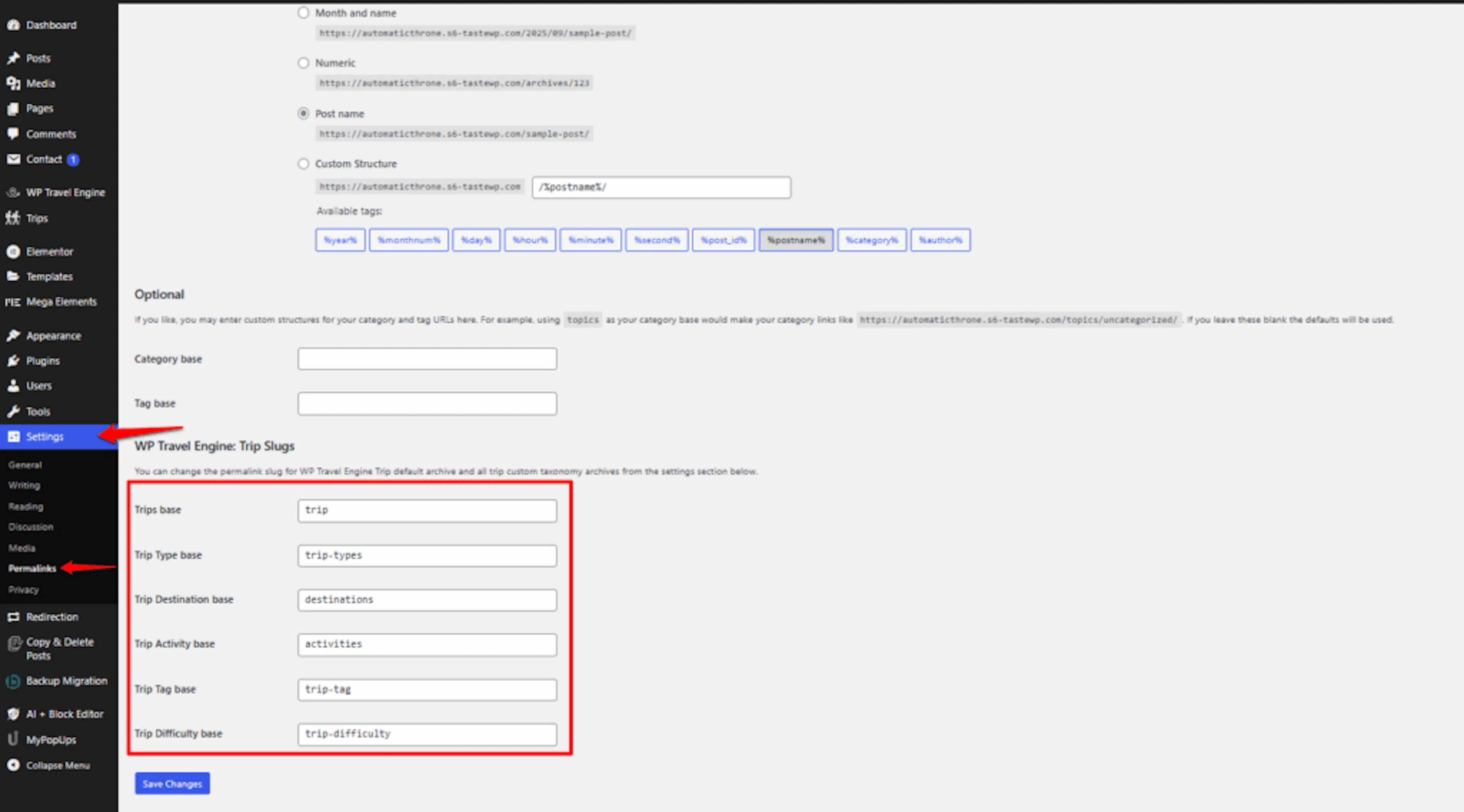
You'll see six fields on this page. Each one controls a different part of your trip URLs.
Change the Trips base slug
The Trips base field controls the main word in your trip page addresses. By default, it's set to trip.
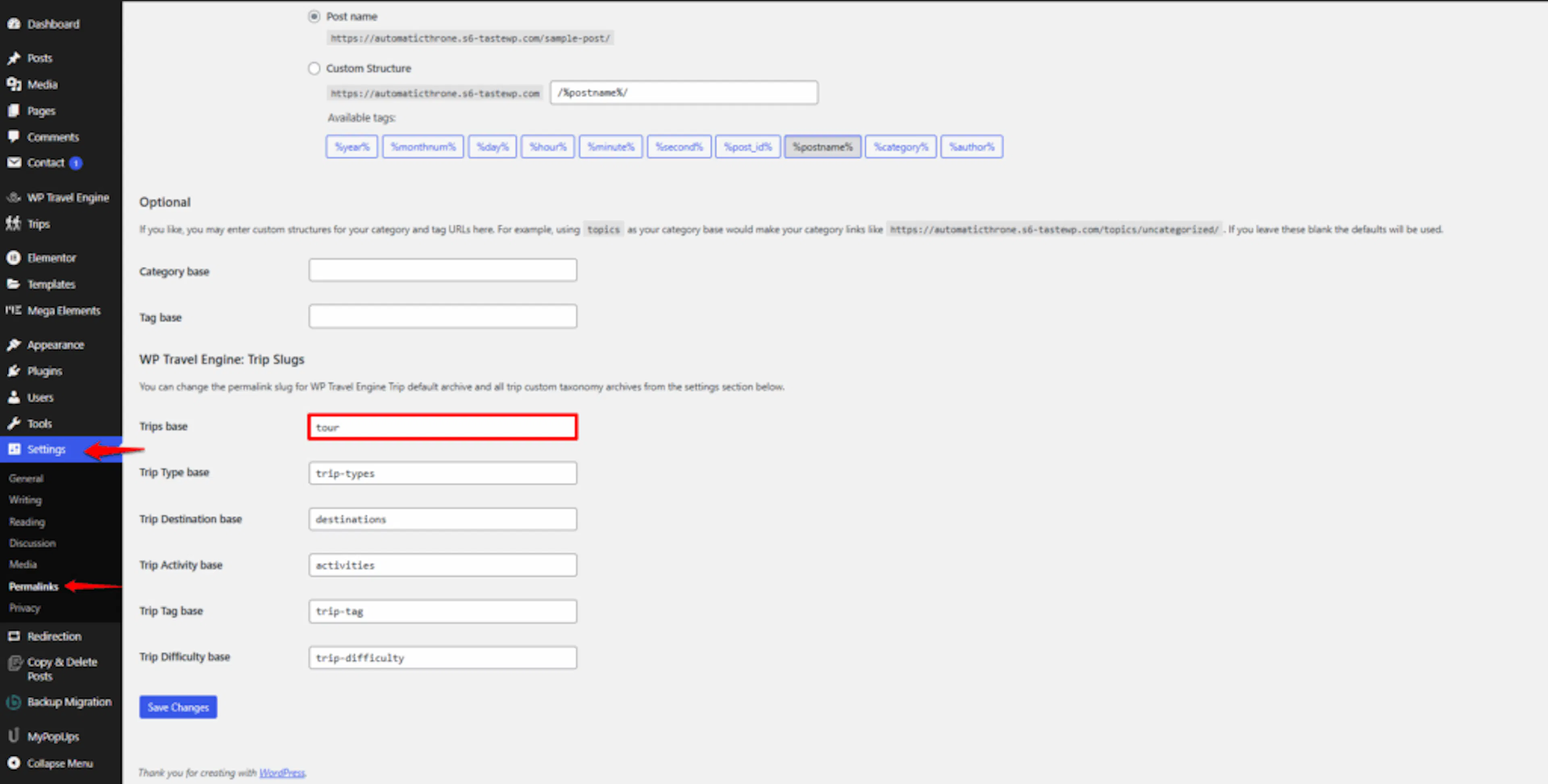
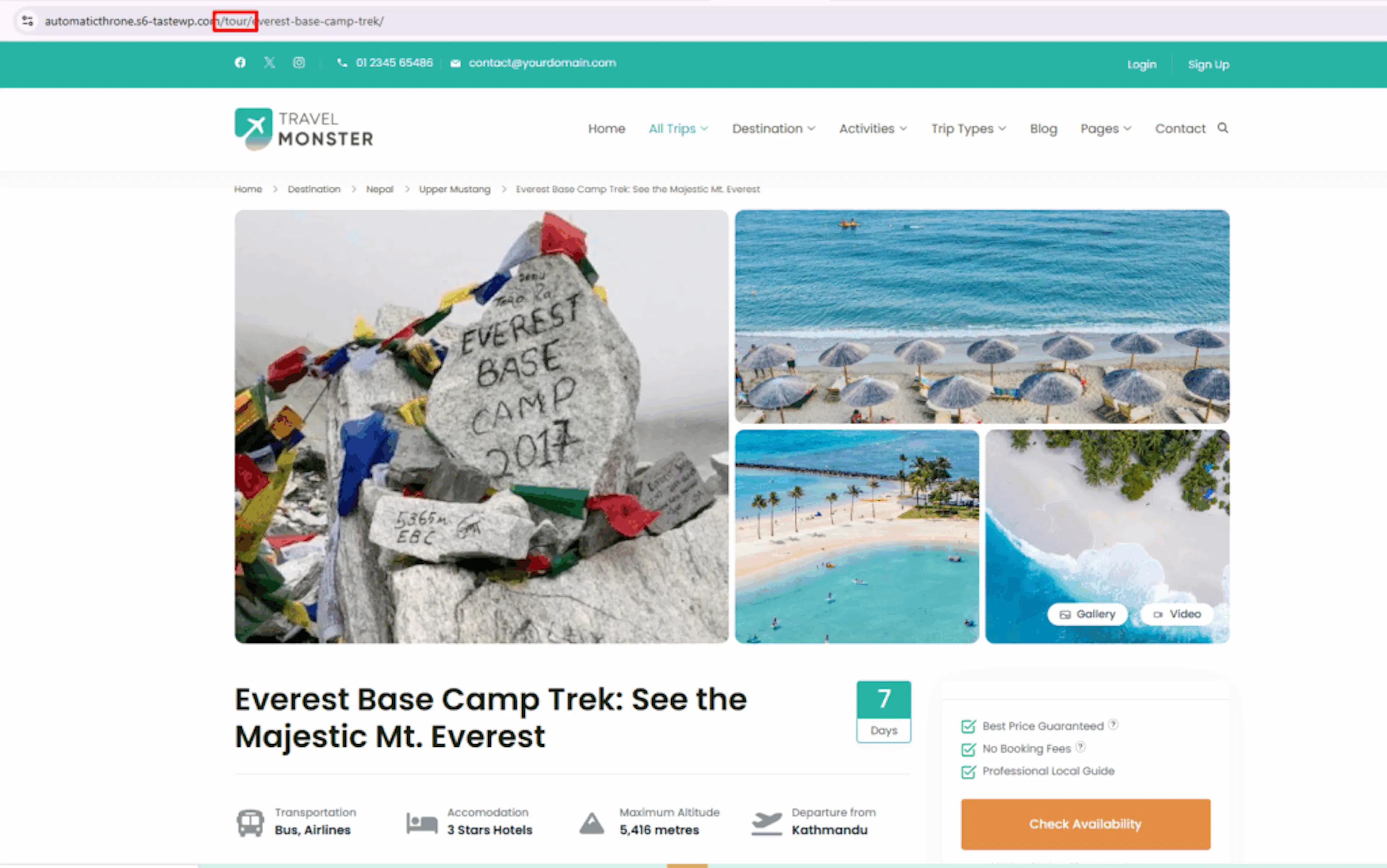
Type in whatever word fits your business better, like tour or holiday.
Say you run a trekking company in Nepal. If you change this to tour, a trip page that was at yourwebsite.com/trip/annapurna-trek becomes yourwebsite.com/tour/annapurna-trek. That small change can make your links feel more like your brand.
Change the Trip Type base slug
The Trip Type base field controls the word in the address for your trip type pages. Trip types are how you group trips by style, like "Adventure" or "Cultural."
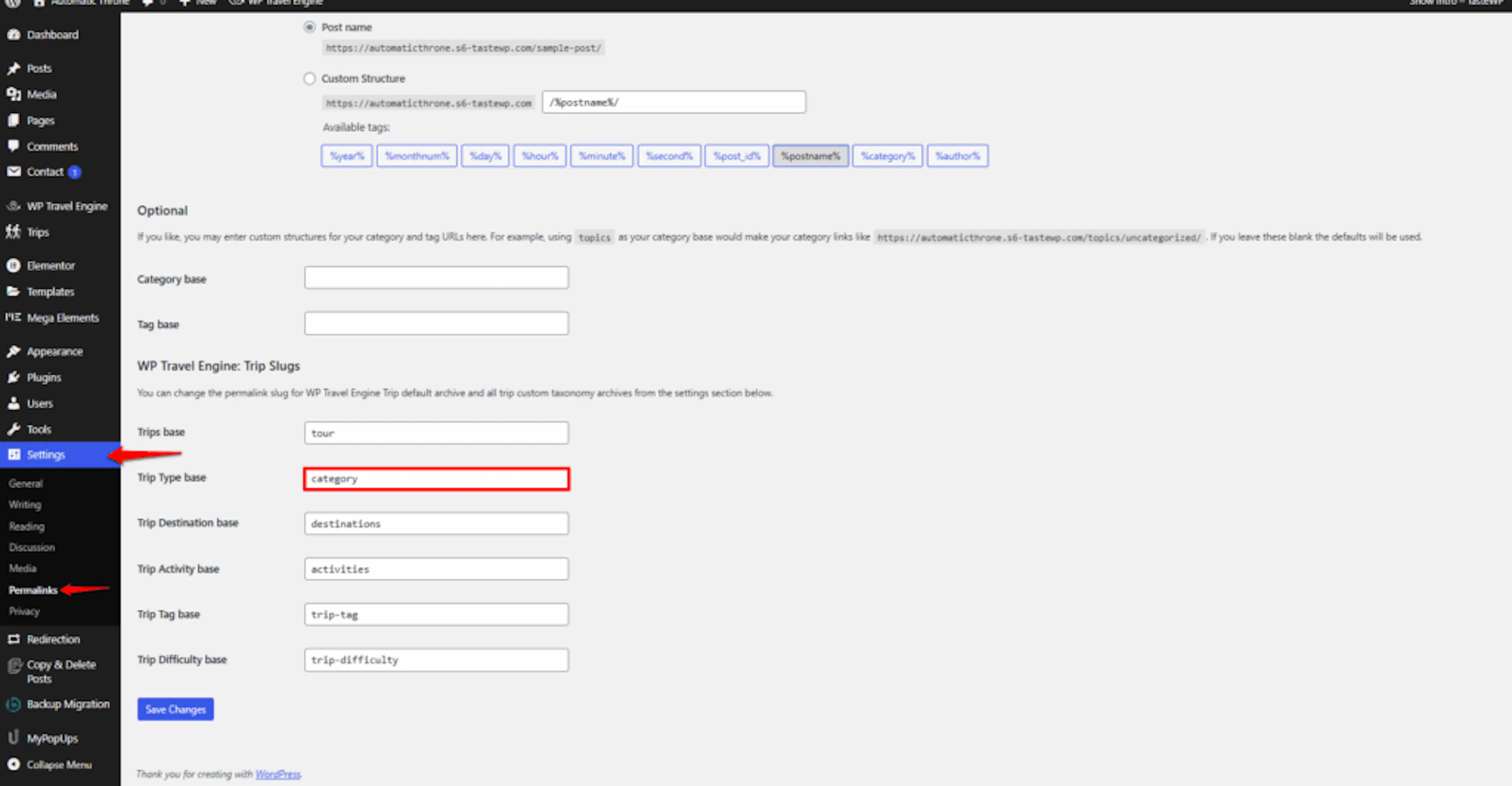
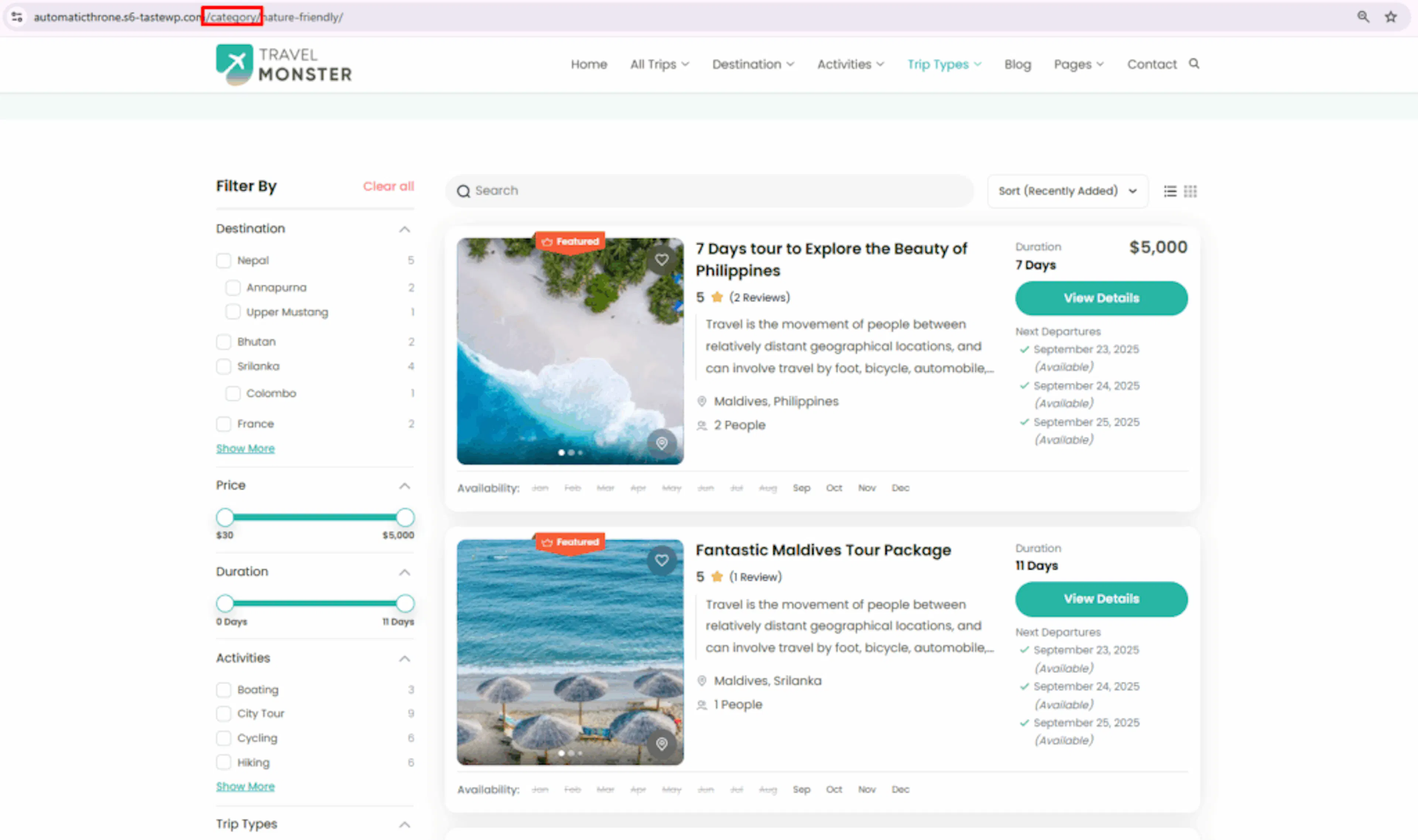
Type a word that makes sense for your business, like style or category.
For example, if you set this to style, your trip type page for Adventure trips would be at yourwebsite.com/style/adventure. That reads more naturally than a generic default.
Change the Trip Destination base slug
The Trip Destination base field controls the word in the address for your destination pages. These are the pages where travelers browse all trips in a specific location.
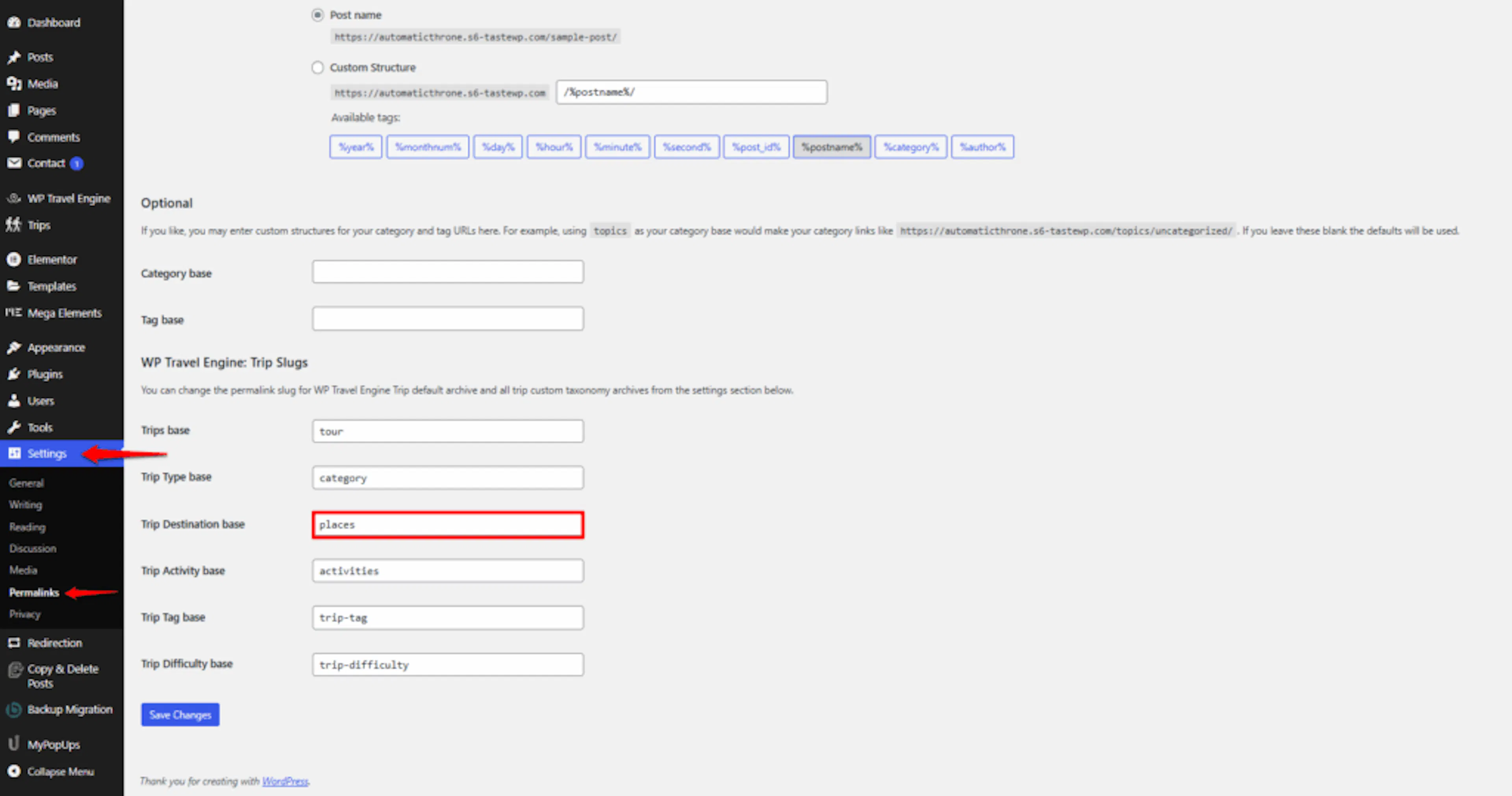
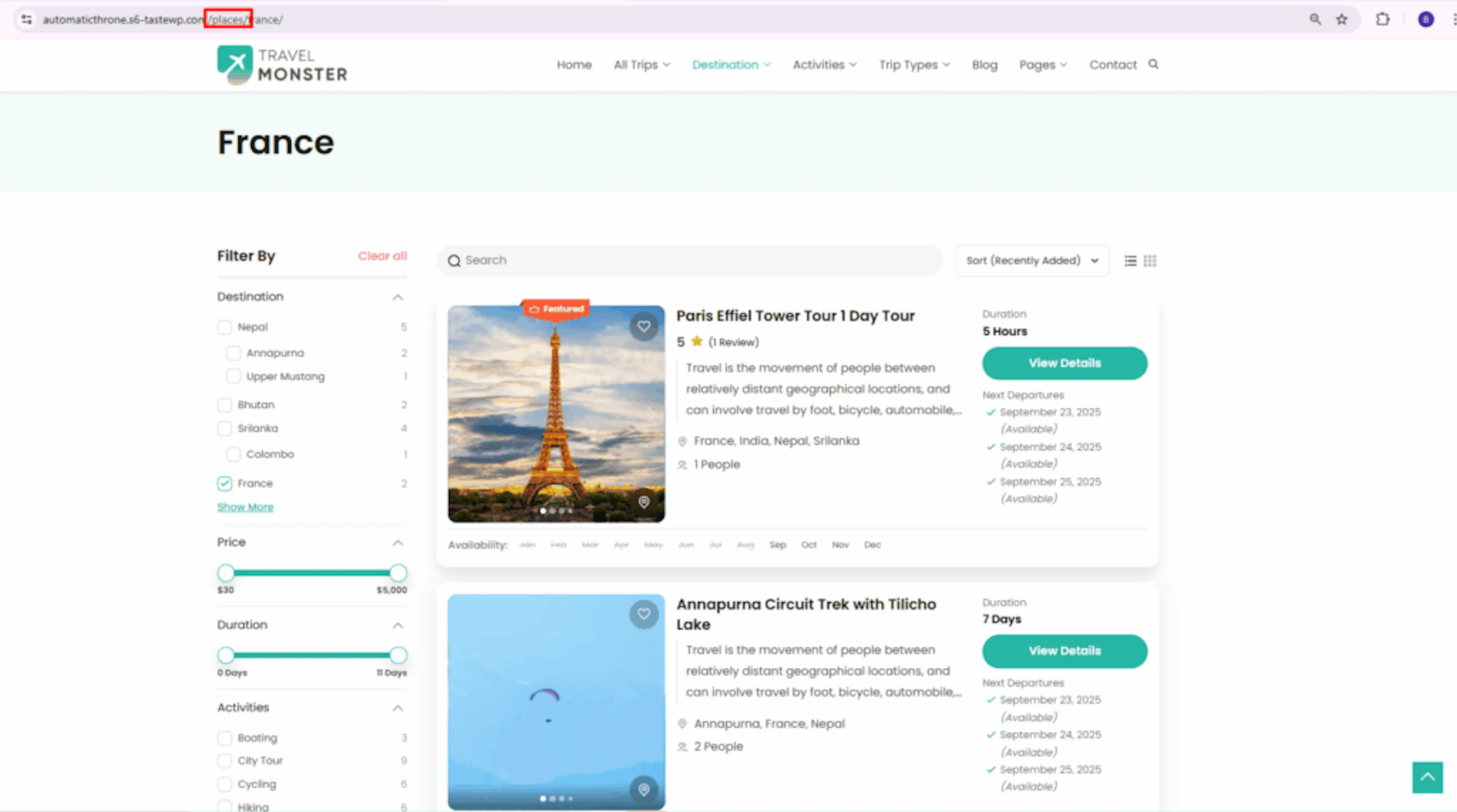
Type a term that makes location-based addresses clearer, like destination or places.
For example, if you set this to places, your Nepal destination page would be at yourwebsite.com/places/nepal instead of the default.
Change the Trip Activity base slug
The Trip Activity base field controls the word in the address for your activity pages. These are pages where travelers browse trips by what they do on them, like hiking or sightseeing.
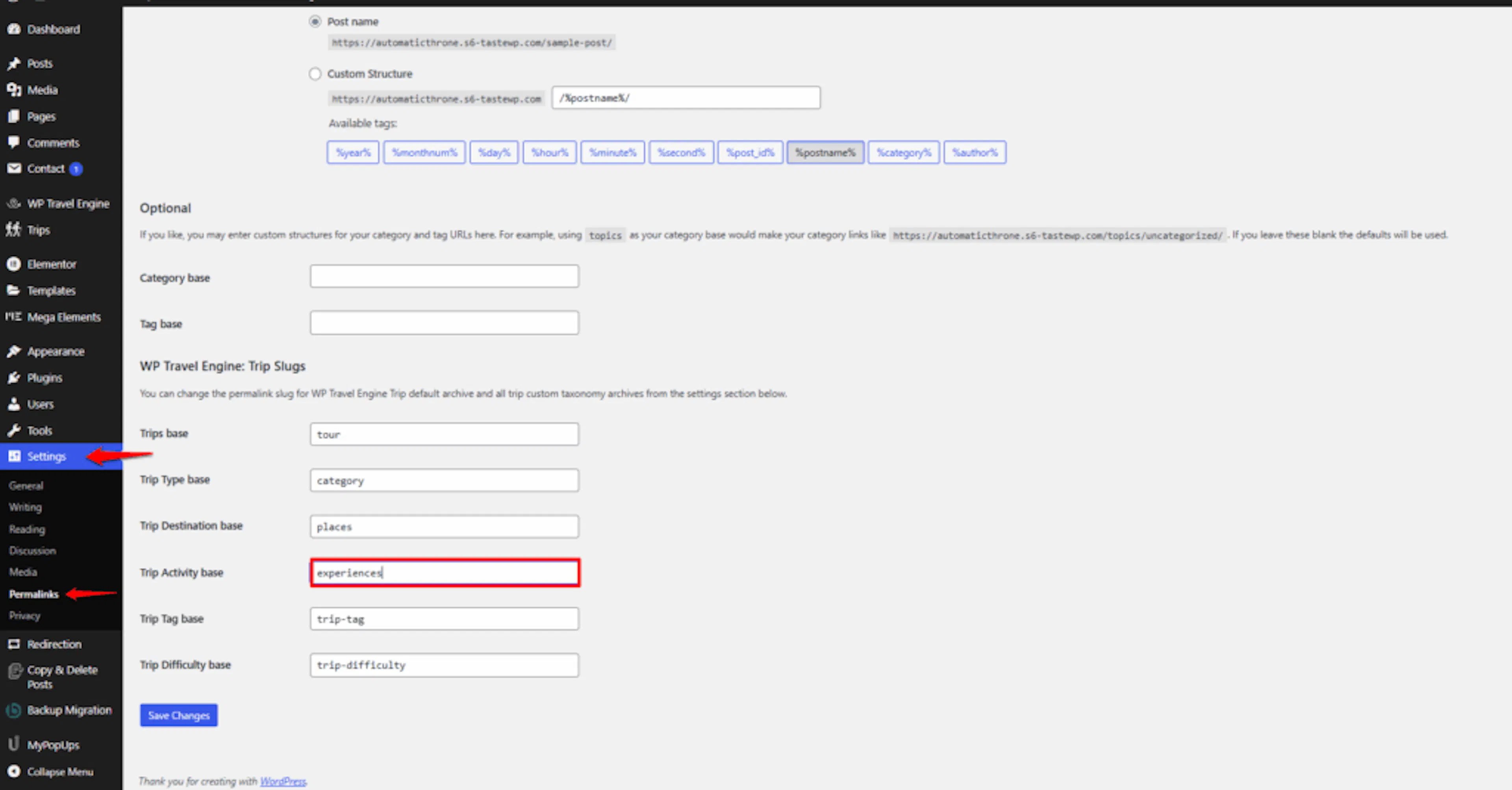
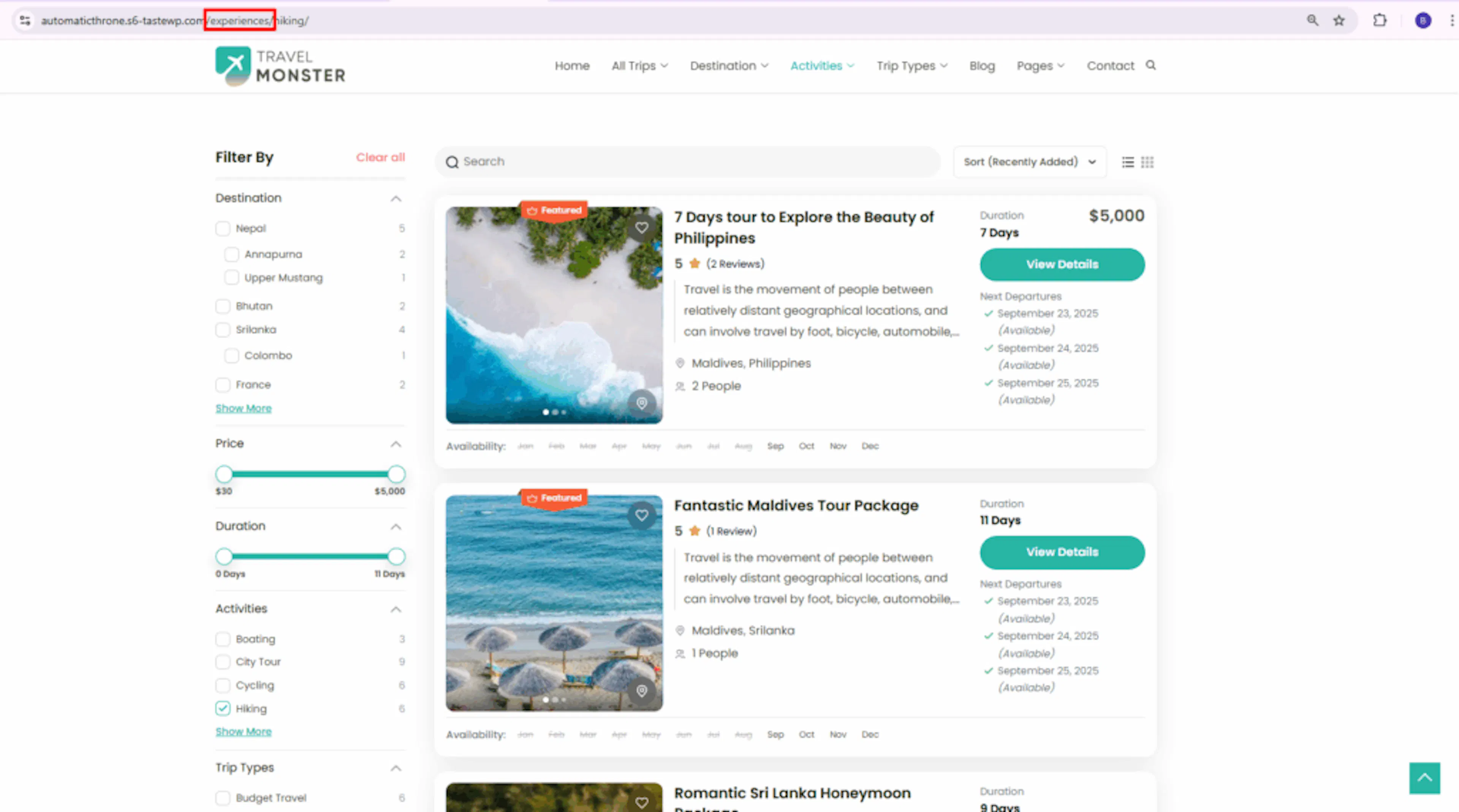
Type a term that better represents the activities you offer, like activity or experiences.
For example, if you set this to experiences, your hiking activity page would be at yourwebsite.com/experiences/hiking. That can help travelers understand what they'll find on that page.
Change the Trip Tag base slug
The Trip Tag base field controls the word in the address for your trip tag pages. Tags are labels you add to trips to help travelers find related content, like "family-friendly" or "summer-special."
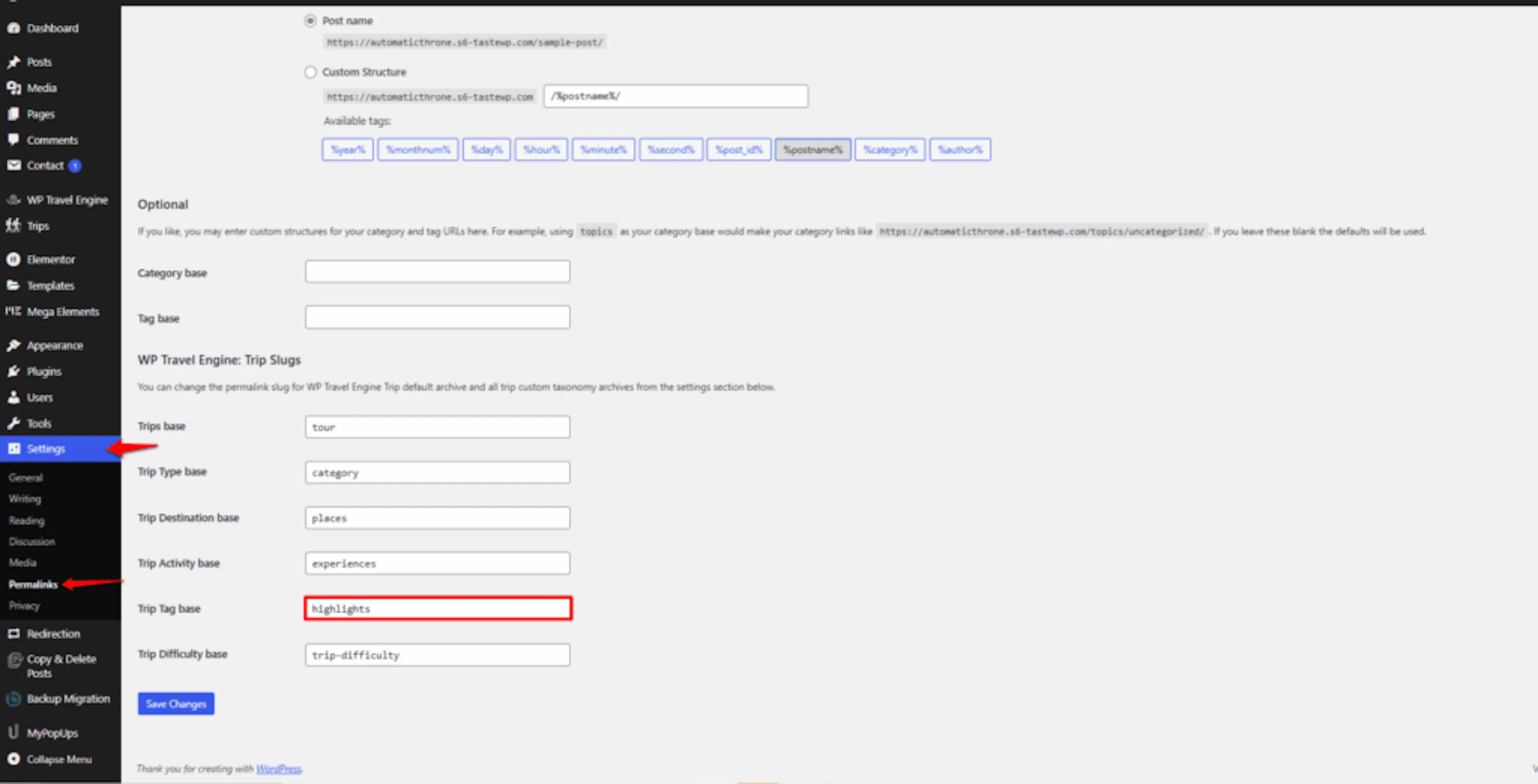
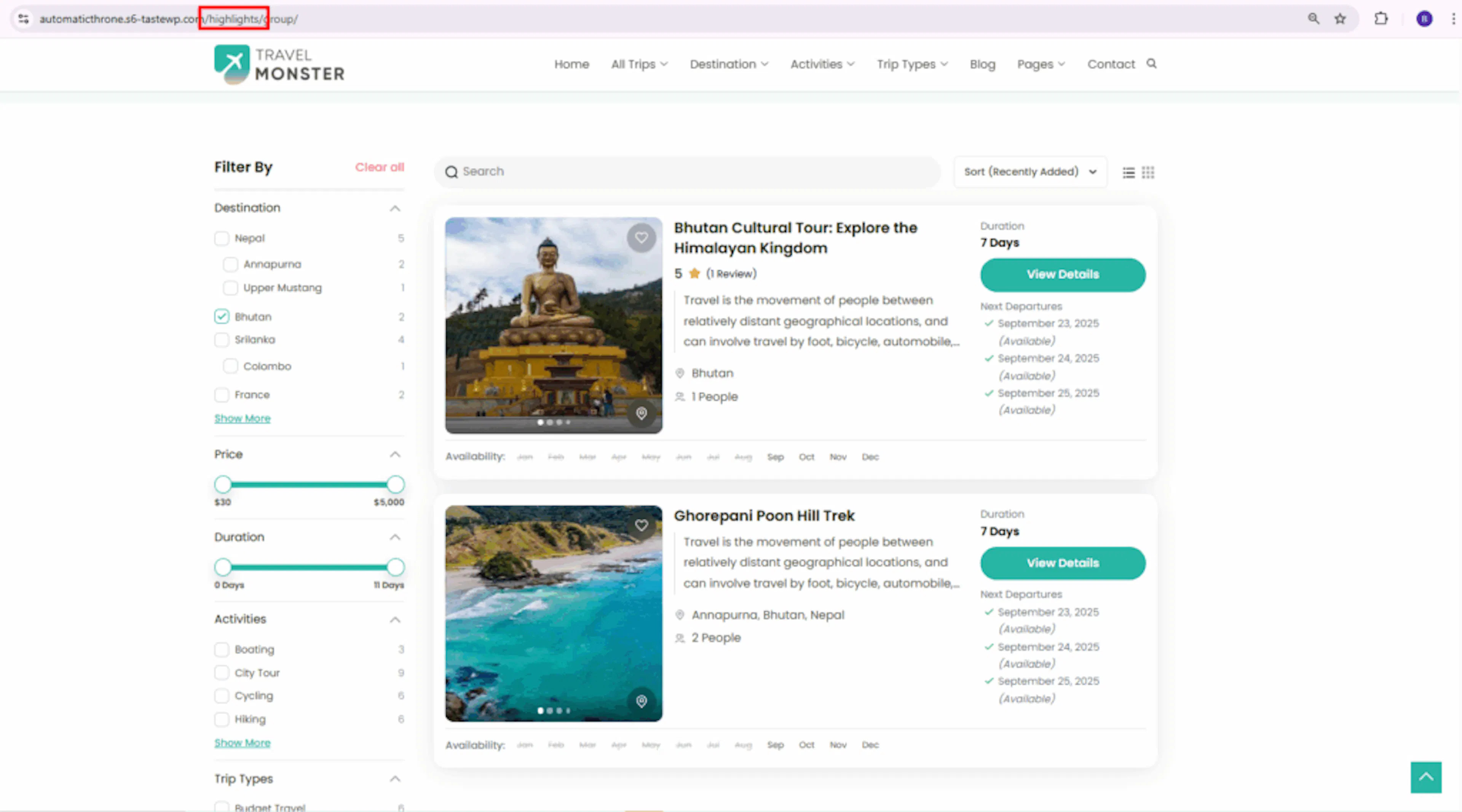
Type a custom term to make tagged trips easier to find, like tags or highlights.
For example, if you set this to highlights, your family-friendly tag page would be at yourwebsite.com/highlights/family-friendly.
Change the Trip Difficulty base slug
The Trip Difficulty base field controls the word in the address for your difficulty level pages. If you organize trips by how challenging they are, this is the slug for those pages.
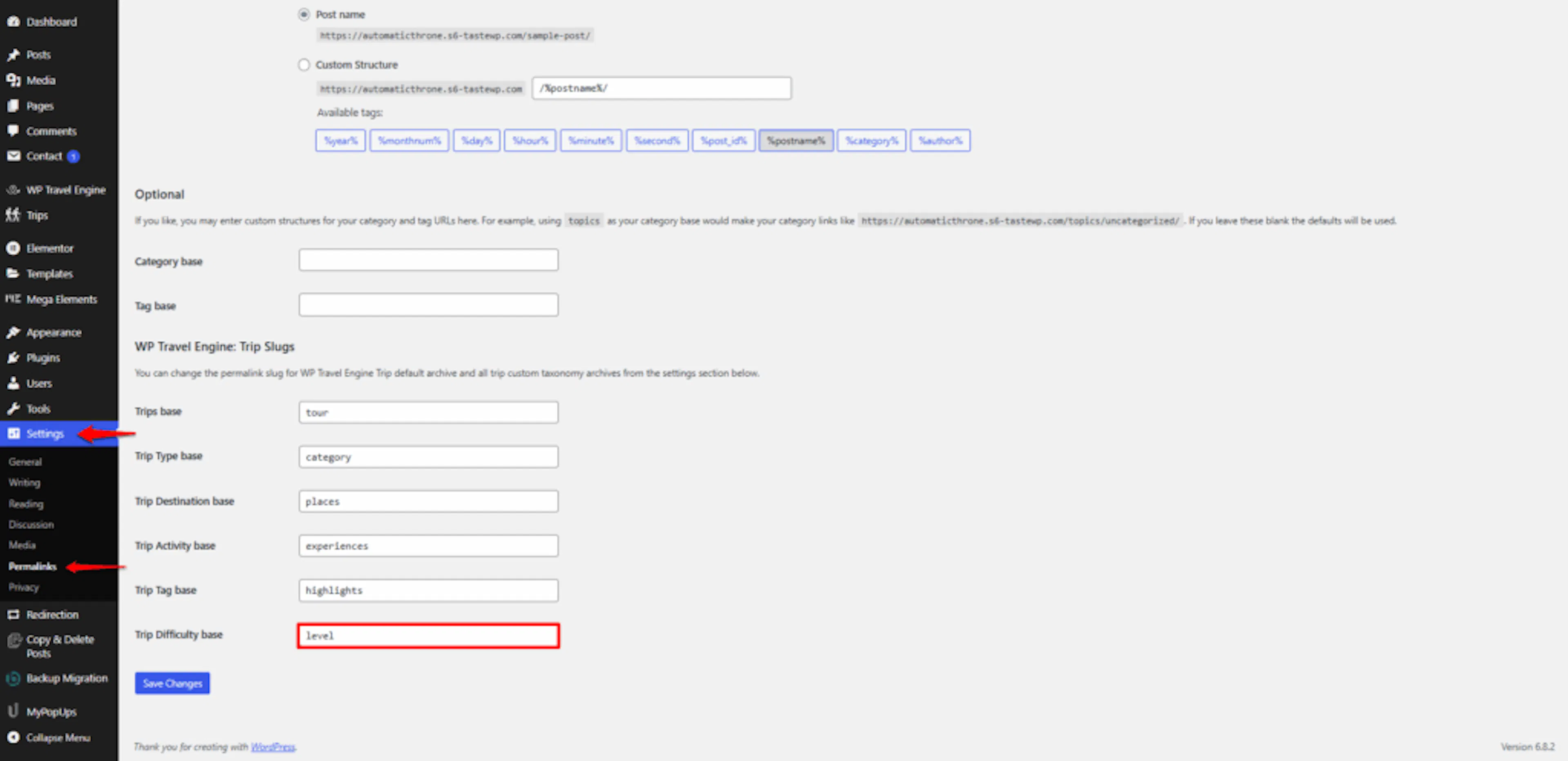
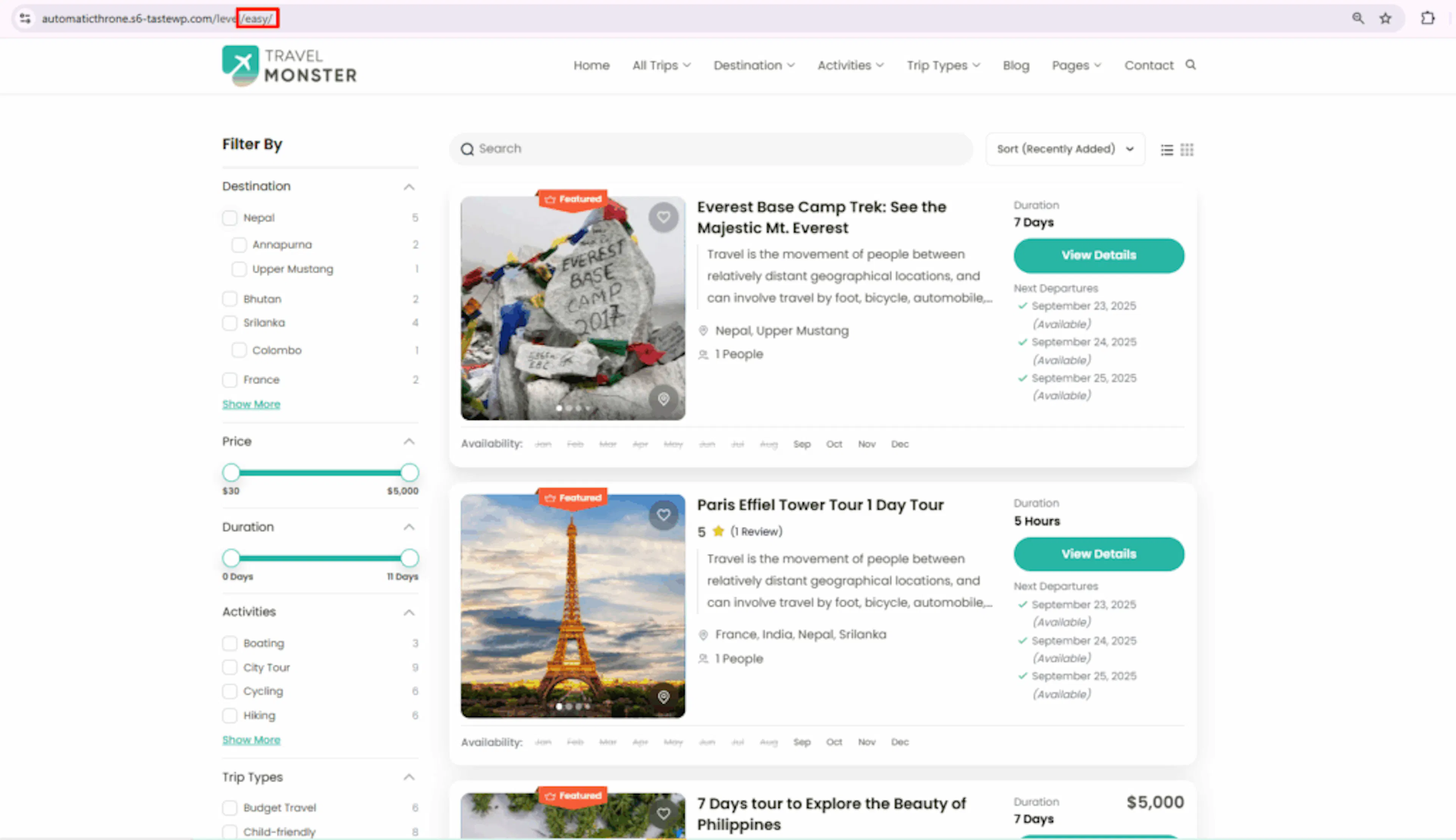
Type a custom term that fits how you describe difficulty, like level or difficulty.
For example, if you set this to level, your moderate difficulty page would be at yourwebsite.com/level/moderate.
You don't have to change all six. Pick the ones that feel right for your business and leave the rest as they are. Once you save your changes, your site starts using the new links right away.
Changing a slug updates your page addresses immediately. If your site is already live and customers have bookmarked your old links, those old links may stop working. If that's a concern, you can set up redirects. A redirect automatically sends visitors from an old address to the new one. If you're not sure how to do that, your web developer or hosting support can help.
If you're still stuck or have a question we didn't cover, our support team is happy to help. Reach out at our support page and we'll get you sorted.